March 19, 2026 Manisha Maurya
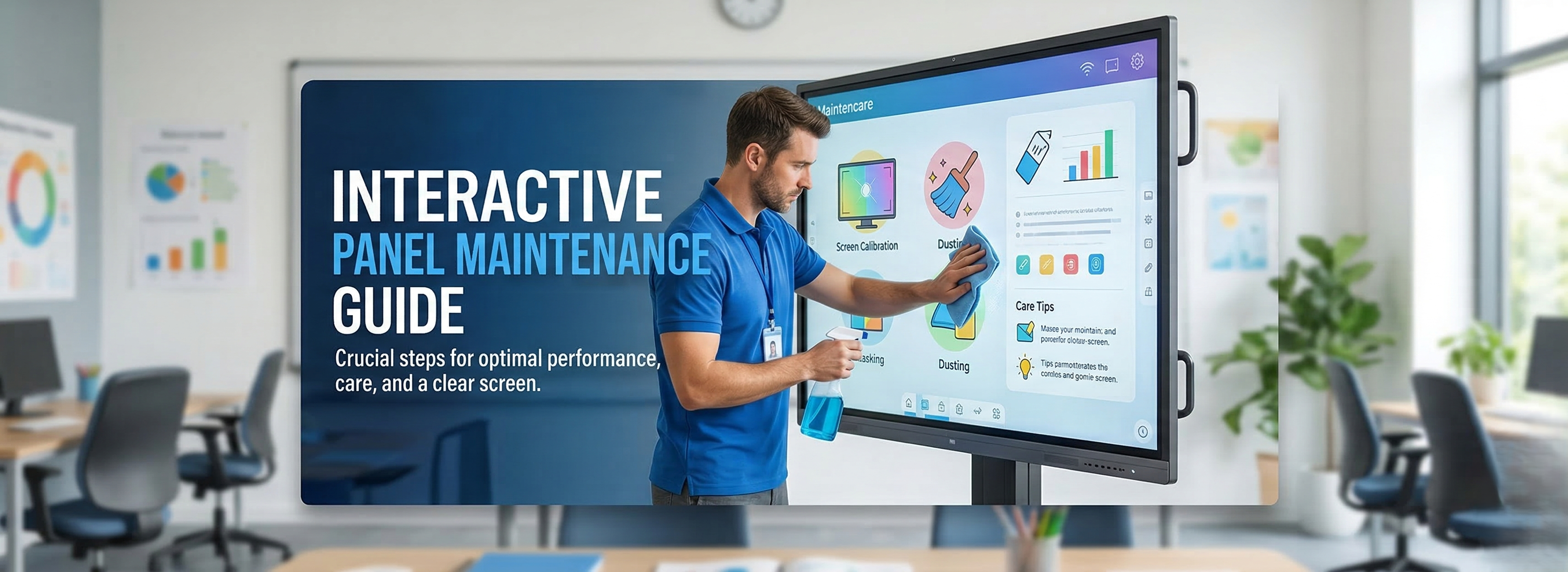
Investing in an interactive panel transforms how teams collaborate and students learn. However, like any advanced piece of technology, these displays require consistent care to function at their best. Proper maintenance not only ensures a crystal-clear image but also guarantees smooth, highly responsive touch interactions for years to come.
Here is your comprehensive interactive panel maintenance guide to keeping your screens in perfect working order.
Interactive panels are high-touch devices. Whether they are mounted in a bustling school hallway or a busy corporate meeting room, they constantly accumulate dust, oils from hands, and environmental debris. If left unchecked, this buildup can degrade the touch sensor accuracy and dull the vibrant visual output.
A lagging or dirty screen can derail a critical presentation or slow down a dynamic lesson plan. Routine care ensures that when a presenter picks up a stylus or a student touches the screen, the display responds with zero hesitation.
Commercial interactive panels are built to last, often designed for 16/7 or 24/7 operation. Proper cleaning and software maintenance protect the delicate anti-glare glass and internal components from premature wear and tear.
When utilizing premium displays from leading manufacturers like Samsung, LG, BenQ, or Deltaview, following strict maintenance protocols is even more important to maintain warranty compliance and preserve their highly calibrated color accuracy.
Keeping your panel in top shape goes beyond just wiping down the glass. Here are the core pillars of interactive panel care:
Daily Surface Cleaning: Use a dry, clean microfiber cloth to gently wipe away daily dust and fingerprints. Never use paper towels.
Weekly Deep Cleaning: Power down the panel. Lightly mist a microfiber cloth with a 50/50 mix of distilled water and isopropyl alcohol (or a dedicated AV screen cleaner). Wipe the screen in broad, overlapping circles. Never spray liquid directly onto the panel.
Software Updates: Firmware and operating system updates patch security vulnerabilities and improve touch responsiveness. Check for updates monthly.
Stylus Care: Inspect the tips of your digital pens regularly. Worn-out or damaged stylus tips can actually scratch the glass over time. Replace them as soon as they show signs of flattening.
Ventilation Checks: Ensure the cooling vents on the back and sides of the panel are free of dust. Blocked vents cause overheating, which can damage the internal processor and shorten the panel's lifespan.
Modern interactive panels rarely need manual calibration unless you notice the cursor or drawing line consistently lagging behind your touch or stylus. If you experience drift, run the built-in calibration tool found in the display's settings menu.
Always use a soft microfiber cloth. If a dry wipe isn't enough, lightly dampen the cloth with a specialized screen cleaner or a mixture of distilled water and 70% isopropyl alcohol. Never use Windex, bleach, or harsh abrasives.
This is often caused by a dirty screen (especially around the infrared bezel if it uses IR touch technology) or out-of-date firmware. Clean the screen and frame thoroughly, and check for any pending software updates.
While many commercial panels are rated for 24/7 use, it is a best practice to schedule an automatic power-down or sleep mode overnight. This saves energy, allows the system to clear its temporary memory, and prolongs the life of the backlight.
If a classroom or boardroom will be empty for an extended time (like during a summer break), unplug the panel to protect it from power surges and drape a breathable, static-free dust cover over the screen to prevent heavy dust accumulation in the bezels.


 Interactive flat Panel
Interactive flat Panel
Interactive flat Panel
Interactive flat Panel
Interactive flat Panel
Interactive flat Panel
Interactive flat Panel