August 29, 2026 Manisha Maurya
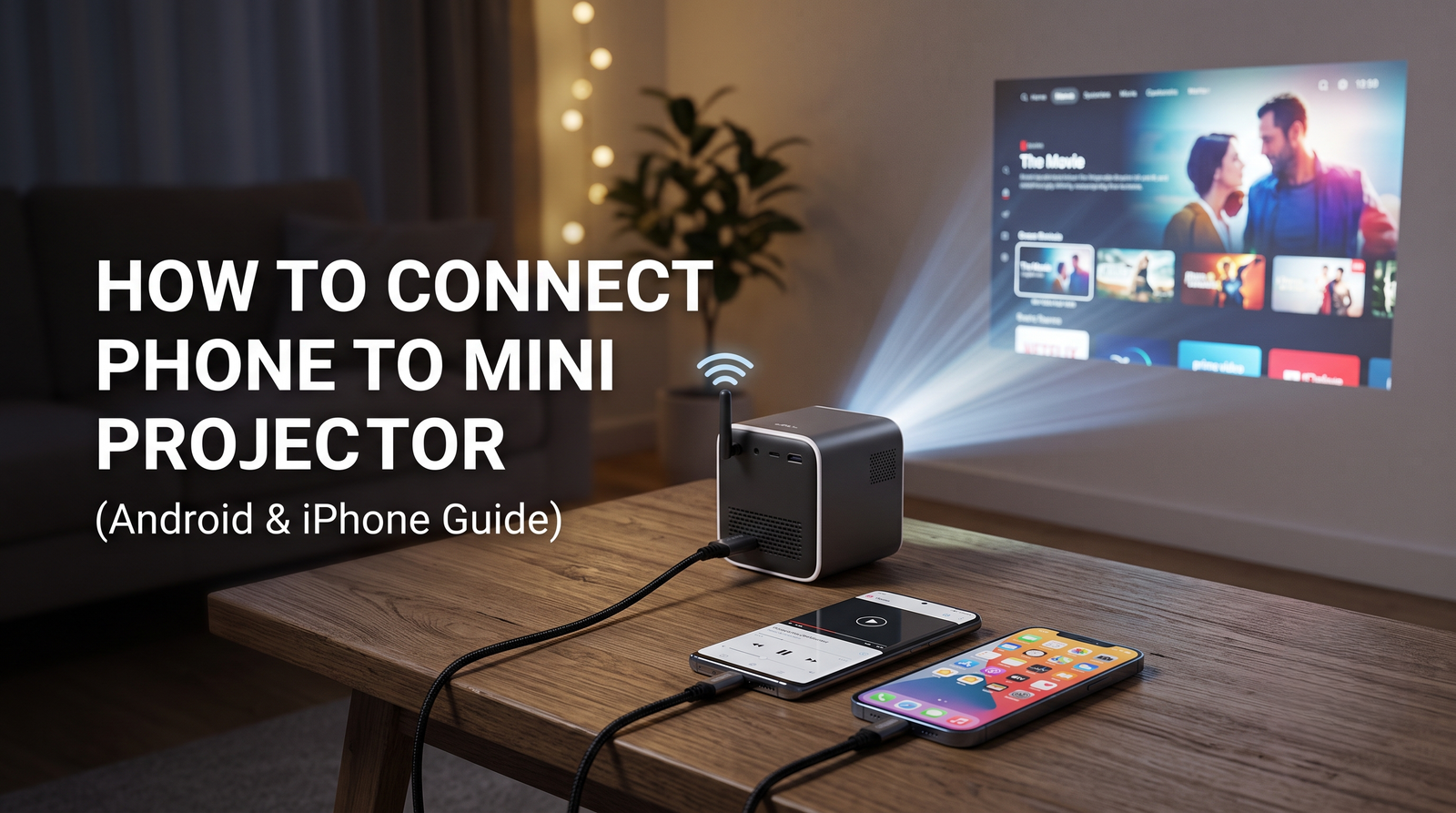
Setting up a mini projector with your smartphone should take only a couple of minutes, yet it frequently turns into a frustrating troubleshooting session. You might plug in a USB cable only to find nothing displays, or you might start screen mirroring only to get a blank black screen the moment you press play on a movie.
These issues rarely mean your hardware is broken. Instead, they usually stem from cable mismatches, missing display protocol support on the phone, or digital copyright protections (HDCP) blocking wireless streams.
Whether you want to project a presentation in a meeting room, share holiday photos with family, or watch a film at home, this guide explains how to connect your phone to a mini projector properly across wired and wireless setups.
To connect a phone to a mini projector, use a direct USB-C to HDMI cable for supported Android devices and iPhone 15 or newer, an Apple Lightning to Digital AV Adapter for older iPhones, or wireless Wi-Fi screen mirroring (Miracast for Android, AirPlay for iOS).
For streaming OTT apps (Netflix, Prime Video, Hotstar): Use a wired HDMI connection or plug a dedicated streaming stick (such as a Fire TV Stick or Chromecast) into the projector's HDMI port.
For photos, presentations, and local files: Built-in Wi-Fi screen mirroring or a direct cable connection works instantly.
Bluetooth cannot be used for video: Bluetooth on mini projectors is strictly designed for transmitting audio to external speakers.
Method | Best Used For | Latency / Lag | OTT Video Playback (Netflix, Prime) | Hardware Required |
|---|---|---|---|---|
USB-C to HDMI Cable | Android (with DisplayPort support) & iPhone 15/16 | None (Real-time) | Yes (HDCP Compliant) | USB-C to HDMI cable or hub |
Lightning to Digital AV Adapter | iPhone 14 and older models | None (Real-time) | Yes (HDCP Compliant) | Official Apple Lightning adapter + HDMI cable |
Built-in Wi-Fi Mirroring | Photos, presentations, YouTube, personal videos | Low to Moderate | No (Blocked by DRM on most models) | Wi-Fi network or projector hotspot |
Streaming Media Dongle | Long viewing sessions, OTT apps, stable wireless control | Low | Yes (Runs directly on dongle) | Fire TV Stick, Google TV, or Chromecast |
Bluetooth Connection | Audio output only | Moderate | N/A (Does not transmit video) | Built-in Bluetooth hardware |
Android devices offer both wired and wireless routes, but compatibility depends on your phone's hardware specifications.
Method 1: Wired Connection via USB-C to HDMI (DisplayPort Alt Mode)
If your Android phone supports DisplayPort Alternate Mode (DP Alt Mode) over its USB-C port, a wired connection provides zero latency and full audio-video transmission.
Connect the USB-C end of the cable to your smartphone.
Plug the HDMI end directly into the HDMI input on your mini portable projector for smartphone use.
Turn on the projector and use the remote or onboard menu to switch the Source / Input to HDMI.
Your Android screen will automatically mirror on the projection surface. Devices with desktop modes (such as Samsung DeX or Motorola Ready For) will prompt you to choose between standard screen mirroring or a desktop interface.
Method 2: Wireless Screen Mirroring (Miracast / Smart View / Cast)
Most modern mini projectors come equipped with built-in Wi-Fi modules supporting Miracast or generic Android screen casting.
Power on the mini projector and select Screen Mirroring, Miracast, or Wireless Display from the home menu.
Ensure your phone and the projector are either connected to the same local Wi-Fi network or connect your phone directly to the projector's Wi-Fi hotspot (SSID and password will appear on the projection screen).
On your Android phone, swipe down from the top of the screen to open the Quick Settings panel.
Tap Smart View, Cast, Screen Cast, or Wireless Projection (the name varies by manufacturer).
Select your mini projector from the list of available devices.
Confirm the pairing prompt on both screens.

Connecting an iOS device differs between modern USB-C iPhone models and legacy Lightning models.
Method 1: iPhone 15, 16, and Newer (USB-C)
Recent iPhone models use a standard USB-C port that natively supports DisplayPort video out.
Plug a certified USB-C to HDMI cable (or a USB-C multi-port AV adapter) into your iPhone.
Connect the other end to the projector's HDMI port.
Switch the projector source to HDMI. The display will mirror immediately without additional configuration.
Method 2: iPhone 14 and Older (Lightning Port)
Older iPhones require an active digital conversion adapter to pass video signals to an HDMI display.
Plug an authentic Apple Lightning to Digital AV Adapter into your iPhone’s charging port.
Connect a standard HDMI cable from the adapter to the mini projector.
Connect a Lightning power cable to the extra port on the adapter to ensure your phone does not run out of battery during projection.
Change the projector input to HDMI.
Method 3: Wireless AirPlay Setup
If your phone screen mirroring projector features native AirPlay or iOS Cast support:
Turn on the projector and open the iOS / AirPlay display receiver screen.
Connect your iPhone to the same Wi-Fi network as the projector.
Open the Control Centre on your iPhone (swipe down from the top-right corner).
Tap the Screen Mirroring icon (two overlapping rectangles).
Choose your projector from the device list.

No, you cannot transmit your phone's screen or video output to a mini projector via Bluetooth.
A frequent point of confusion among buyers comes from product listings advertising "Bluetooth Mini Projectors." In display hardware, Bluetooth bandwidth is limited and strictly reserved for audio signals.
On a mini projector, Bluetooth functions in one of two ways depending on the model:
Bluetooth Audio Transmitter: It pairs the projector with an external Bluetooth soundbar, home theatre, or headphones to deliver louder sound than the projector's internal speaker.
Bluetooth Speaker Mode: It allows the projector to act as a standalone speaker, playing music from your phone while the projection lamp is off.
To transmit video, you must always rely on an HDMI cable, Wi-Fi screen mirroring, or a dedicated media streaming device.
If you can mirror your phone's home screen, YouTube videos, and photos without issue, but Netflix, Amazon Prime Video, Disney+ Hotstar, or JioCinema display only a black screen with audio, you are encountering HDCP (High-bandwidth Digital Content Protection) restrictions.
HDCP is a digital rights management protocol designed to prevent copyrighted streaming media from being captured or pirated over unencrypted wireless links. Standard phone-to-projector screen mirroring does not satisfy HDCP handshake requirements on most portable projectors.
Use a Wired HDMI Connection: Official adapters (such as Apple's Digital AV adapter or verified DP-Alt USB-C cables) pass HDCP compliance checks and play content normally.
Use a Streaming Media Stick: Plug an external device like an Amazon Fire TV Stick, Xiaomi TV Stick, or Google Chromecast directly into the projector's HDMI port. This bypasses the phone entirely, running apps natively through the hardware.
Use Built-in Smart Projector OS: If your mini projector runs an onboard Android TV or Google TV system with certified widevine L1/L3 licensing, download the streaming applications directly onto the projector storage.
When choosing and using a mini portable projector for smartphone streaming in India, several practical factors affect everyday performance:
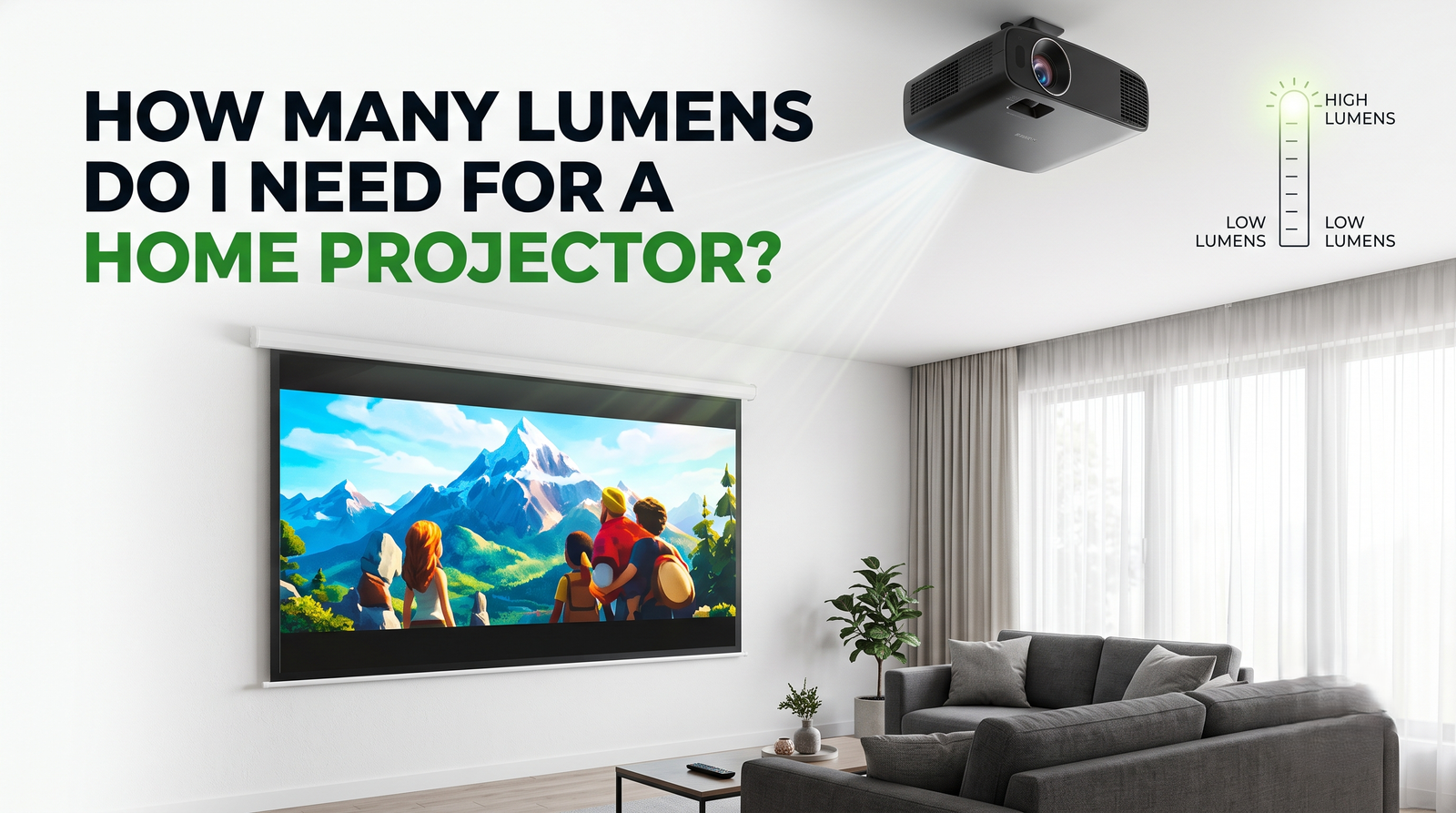
Room Ambient Light vs. Lumens: Pocket-sized projectors generally output between 100 and 500 ANSI Lumens. They require a dimly lit or fully dark room for a clear image. Do not expect bright, crisp performance in standard daylight without drawn curtains.
Port Selection: Ensure the projector includes at least one full-sized HDMI port and a powered USB-A port (useful for powering streaming dongles directly without needing a second wall socket).
Native Resolution vs. Supported Resolution: Many budget listings advertise "4K Support," which only means the projector can accept a 4K input signal and downscale it. Always verify the Native Resolution (720p or 1080p is recommended for legible text and sharp video).
Audio Quality and External Output: Mini projectors have small 2W to 5W internal speakers. For movie viewing, verify whether the projector has a 3.5mm AUX audio-out jack or Bluetooth audio transmitting capabilities to link with an external speaker.
Operating Temperatures and Power: Portable setups generate noticeable heat in compact chassis. Keep the ventilation grilles clear, especially during humid or warm months, to prevent thermal throttling of the LED lamp.
If your phone fails to display on the mini projector, run through these diagnostic steps:
Verify Source Input: Ensure the projector is manually set to the exact input port you are connected to (e.g., HDMI 1 vs. HDMI 2).
Check Cable Power Delivery: Some USB-C hubs and Lightning adapters require external power to transmit video signals reliably. Plug your phone charger into the adapter's pass-through port.
Restart the Wi-Fi Handshake: For wireless mirroring, turn off your phone’s Wi-Fi, restart the projector's casting interface, reconnect to the same 5 GHz network (if available), and initiate screen mirroring again.
Inspect Phone Port Functionality: Ensure your phone's charging port is free of lint and debris, which can interrupt data transfer pins while still allowing basic charging.
Update Firmware: Access the settings menu on your smart mini projector and install any pending firmware updates to maintain wireless casting protocol compatibility.
1. Can I connect my phone to a mini projector using a regular charging cable?
No. Standard charging cables only carry power and basic file transfer protocols (USB 2.0). They cannot transmit raw display signals to an HDMI port unless the projector includes a proprietary USB display driver app, which often introduces noticeable latency.
2. Why does my projector show my phone screen but no sound comes out?
Audio routing depends on your connection. If connected via HDMI, check your phone's sound output settings to ensure audio is routed to the external display. If using wireless mirroring, some Android models require you to enable "Cast Audio" within the casting menu.
3. Will screen mirroring drain my phone's battery quickly?
Yes. Encoding and broadcasting a continuous video stream over Wi-Fi consumes significant battery power. When streaming long videos, connect your phone to a charger or use a powered multi-port hub.
4. Do I need an active internet connection to mirror my phone screen?
No. Direct wired connections (HDMI) do not require internet access. Similarly, projectors that create their own local Wi-Fi hotspot for direct Miracast or AirPlay mirroring can project offline local media files without an active internet plan.
5. Why is there a delay between my phone and the projection?
Wireless screen mirroring naturally introduces 50 to 200 milliseconds of latency due to wireless video compression. For gaming or typing, use a direct USB-C to HDMI cable to eliminate input lag.
6. Can I mirror my phone screen if my phone does not support DP Alt mode?
Yes, you can still use wireless Wi-Fi casting (Miracast/AirPlay) or plug a streaming dongle like a Chromecast/Fire TV Stick into the projector and cast content through supported apps like YouTube.
7. How far can a mini projector throw an image from a phone?
Most mini projectors have a throw ratio between 1.2:1 and 1.4:1, which produces a 60-inch to 100-inch screen from a distance of approximately 1.5 to 3 metres.
8. Does screen mirroring work with 5 GHz Wi-Fi?
Yes. If both your phone and projector support 5 GHz Wi-Fi bands, connecting to 5 GHz reduces interference and provides a smoother video stream compared to standard 2.4 GHz networks.

 Interactive flat Panel
Interactive flat Panel
Interactive flat Panel
 Interactive flat Panel
 Interactive flat Panel