July 27, 2026 Manisha Maurya

Few things disrupt a corporate meeting or a client pitch as quickly as audio echo and video lag. In India, where hybrid work models are standard across tech hubs like Bengaluru, Mumbai, and Gurugram, maintaining a flawless virtual presence is critical for business continuity. Yet, professionals frequently encounter frozen screens, robotic voices, and distracting audio feedback loops.
These disruptions are rarely caused by a single unfixable glitch. Instead, they usually stem from identifiable network bottlenecks, hardware limitations, or incorrect software configurations.
Resolving these issues permanently requires a systematic approach to troubleshooting. By isolating the root cause—whether it is local network congestion, outdated device drivers, or acoustic feedback—you can establish a stable environment for professional virtual communication.
To fix video conferencing lag, switch from Wi-Fi to a wired Ethernet connection, close background applications that consume bandwidth, and lower your camera’s resolution settings within the app. To eliminate audio echo, ensure all participants use headphones instead of open speakers, mute microphones when not speaking, and reduce the speaker volume to prevent sound from looping back into the microphone.
Before implementing permanent fixes, it helps to understand why these two distinct issues occur during virtual meetings.
Video lag is primarily a bandwidth and processing issue. When your camera captures video, the data must be compressed by your computer, transmitted over your internet connection, processed by the platform’s server, and delivered to the other participants.
If your internet upload speed drops, or if your computer's Central Processing Unit (CPU) is overwhelmed by running multiple heavy applications, this data pipeline chokes. The result is delayed frames, out-of-sync audio, or a completely frozen screen.
Audio echo is an acoustic or digital feedback loop. It occurs when the sound coming out of your laptop or external speakers travels through the air and gets picked up by your own microphone.
The software then transmits this sound back to the other participants with a slight delay. Echo can also be caused by severe network latency, where the platform's built-in echo cancellation software fails to sync the audio streams in real time.
If your video routinely freezes or falls behind the audio stream, follow these steps to optimize your setup for a smooth
Wireless networks are highly susceptible to local interference from walls, household appliances, and other connected devices.
Switch to an Ethernet Cable: Connect your laptop directly to your Wi-Fi router using a Cat6 Ethernet cable. This eliminates packet loss and provides a stable, symmetrical data flow.
Disconnect Secondary Devices: Bandwidth-heavy activities like 4K streaming, online gaming, or large cloud backups on other devices within the same premises can degrade your call quality.
Prioritize Traffic via QoS: Access your router's administrative dashboard and enable Quality of Service (QoS) settings. Assign high priority to video collaboration platforms like Microsoft Teams, Zoom, or Google Meet.
High-definition video processing requires significant computational power. If your system resources are maxed out, your video stream will stutter.
Close Heavy Background Applications: Shut down resource-intensive programs such as web browsers with dozens of open tabs, video editing software, and local database tools before joining a meeting.
Update Graphic and Network Drivers: Outdated drivers can cause hardware inefficiencies. Visit your device manufacturer’s website to install the latest network adapter and graphics processing unit (GPU) updates.
Disable Virtual Backgrounds: Features like background blurring or virtual green screens require continuous CPU and GPU processing. Disabling these features instantly reduces system strain.
Most virtual meeting platforms allow you to scale down performance settings to match your current network capabilities.
Lower the Video Resolution: Switch your sending resolution from 1080p (Full HD) to 720p (Standard HD) or 360p within the application's video settings menu. The difference in clarity is minimal on laptop screens, but the reduction in required bandwidth is substantial.
Turn Off Hardware Acceleration: If you are using an older computer, hardware acceleration can sometimes cause software conflicts. Test your application with this feature toggled off to see if performance improves.
Audio echo can make communication impossible. Use these targeted methods to eliminate feedback loops permanently.
Physical setup adjustments are the most effective way to eliminate natural acoustic echo.
Wear Headphones or a Headset: This is the single most effective solution. By using earphones, the incoming audio goes directly into your ears, making it physically impossible for your microphone to pick up the sound from an open speaker.
Reduce Speaker Volume: If you must use open speakers, turn the volume down to the lowest comfortable level. This minimizes the risk of the sound bleeding back into your microphone.
Maintain Distance Between Devices: If two people are joining the same meeting from the same physical room, their microphones will pick up each other's voices, creating a harsh echo loop. One participant must completely mute their microphone and turn off their device speakers.
Modern collaboration platforms include built-in tools designed to manage ambient noise and audio feedback.
Enable Built-in Echo Cancellation: Navigate to your platform's audio settings and ensure that features like "Echo Cancellation" or "Suppress Background Noise" are set to automatic or high.
Practice Mute Discipline: Get into the habit of muting your microphone whenever you are not actively speaking. This keeps the audio channel clean and prevents your system from contributing to ambient echo.
Different applications handle network strain and audio processing in different ways. Understanding these characteristics helps you manage your system resources effectively.
| Platform | Recommended Minimum Bandwidth (HD Video) | Resource Consumption (CPU/RAM) | Built-In Audio Management Strengths |
| Microsoft Teams | 2.5 Mbps up / 2.5 Mbps down | High | Excellent background noise suppression; highly sensitive to network latency. |
| Zoom Meetings | 1.5 Mbps up / 1.5 Mbps down | Moderate | Superior low-bandwidth optimization; reliable echo cancellation. |
| Google Meet | 1.8 Mbps up / 1.8 Mbps down | Moderate (Browser-based) | Efficient web-based processing; automatic adjustment to low light and low bandwidth. |
| Cisco Webex | 2.0 Mbps up / 2.0 Mbps down | High | Enterprise-grade audio filtering; handles complex |
If software troubleshooting does not resolve your issues, your existing hardware may be unable to handle modern high-definition streaming demands. Consider investing in dedicated communication tools to upgrade your
Dedicated USB Business Headsets: Look for headsets featuring hardware-level noise-cancelling microphones. These hardware options physically isolate your voice from room reflections and ambient office sounds.
External Webcams with On-Board Processing: High-quality external webcams often handle video encoding directly on the camera hardware itself, reducing the processing load on your computer’s CPU.
Dedicated All-in-One Speakerphones: For small meeting spaces or home offices, an enterprise-grade USB speakerphone with a 360-degree microphone array provides advanced built-in acoustic echo cancellation that far outperforms standard laptop hardware.
| Approach | Advantages | Limitations |
| Wired Ethernet Connections | Eliminates Wi-Fi signal dropouts. Provides the lowest possible latency. | Reduces physical mobility. Requires modern laptops to use a USB-to-Ethernet adapter. |
| Lowering Video Resolution | Reduces bandwidth consumption instantly. Stabilizes connections on weak networks. | Lowers the visual clarity of shared documents or physical demonstrations. |
| Using Software Noise Suppression | Filters out air conditioners, fans, and street noise. | Can occasionally distort natural vocal tones or clip the start of sentences. |
Fixing video conferencing lag and echo permanently requires addressing both network stability and audio routing. For most professionals experiencing these issues, switching to a wired Ethernet connection and wearing a dedicated headset will resolve over 90% of all disruptions.
If performance issues persist after optimizing your network and hardware settings, it may be time to evaluate whether your organization's underlying network infrastructure or
When you hear your own voice echoing, the issue is actually caused by the other participant’s setup. Their microphone is picking up your voice from their speakers and transmitting it back to you. Ask them to lower their speaker volume or switch to headphones.
For reliable high-definition video conferencing, you need a stable internet connection with a minimum symmetrical speed of 5 Mbps for both upload and download. Keep in mind that standard mobile data hotspots often suffer from high latency (ping), which can cause lag even if the raw download speed appears high.
Yes, routing your traffic through a Virtual Private Network (VPN) adds an extra layer of encryption and routes your data through distant servers. This increases latency and packet loss. Disconnect your VPN before joining video calls unless your corporate security policy strictly requires it.
While 5G Wi-Fi offers high raw speeds, wireless signals are prone to momentary jitter and packet loss caused by physical obstacles and radio interference. A wired Ethernet connection provides a direct, uninterrupted path for data, ensuring the stable packet delivery required for real-time communication.
Video conferencing strains your computer's CPU and graphics card. When these components run at high capacity for an extended period, they generate heat. If the internal fans cannot cool the system down, the computer automatically slows itself down (thermal throttling) to prevent damage, resulting in sudden video lag.
An upgraded webcam will improve image clarity, color balance, and low-light performance, but it will not fix lag caused by a slow internet connection. In fact, an unoptimized high-resolution 4K webcam can actually worsen lag by demanding more bandwidth and processing power than your system can handle.
Corporate meeting rooms often feature large, hard surfaces like glass walls, concrete floors, and long conference tables that reflect sound easily. Without proper acoustic panels or specialized, professional
Yes. Modern web browsers can consume significant amounts of System RAM and CPU cycles, especially when running interactive web apps or video streaming sites in the background. Closing these tabs frees up critical system resources, allowing your computer to process your video call data without stuttering.


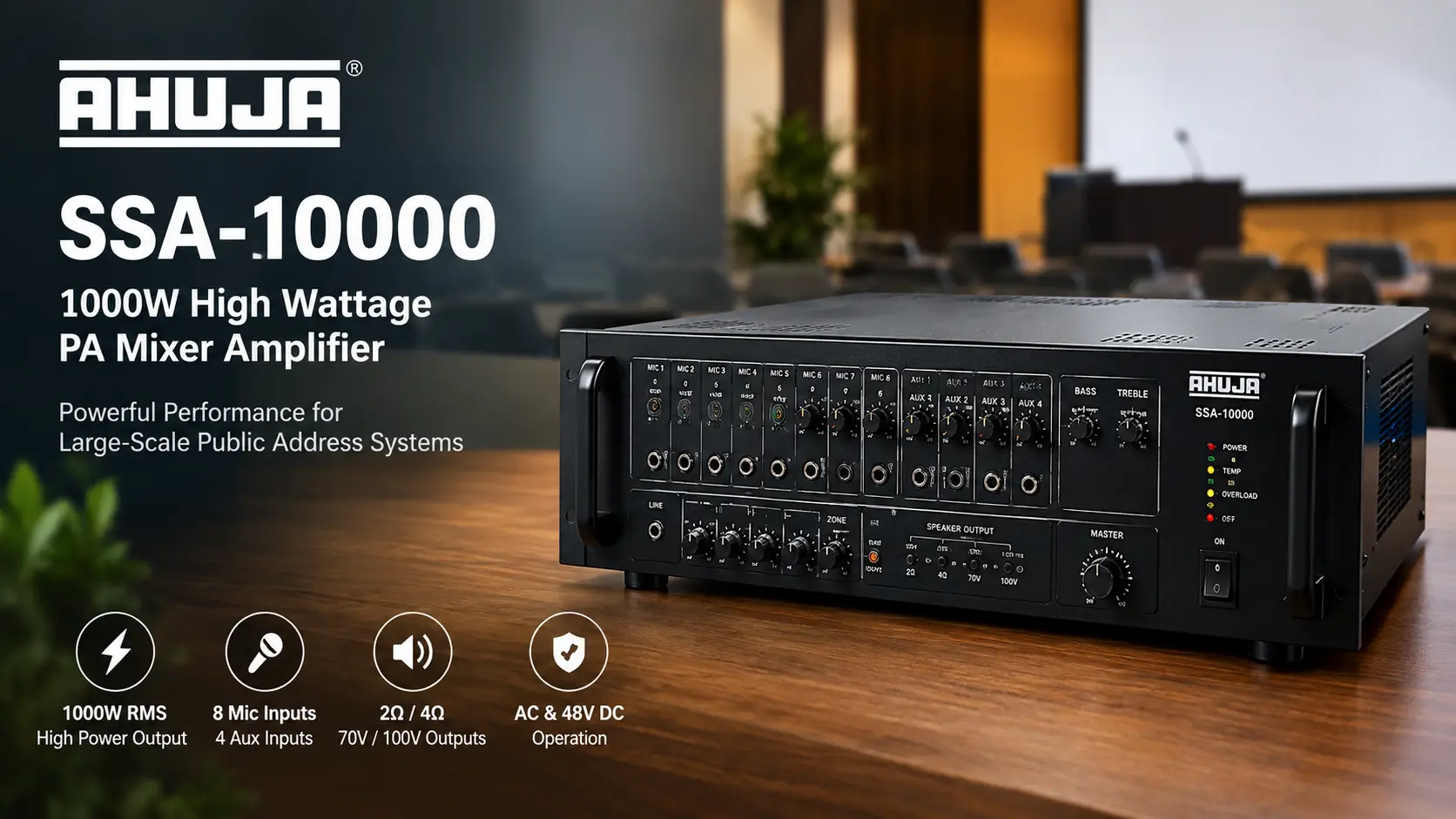

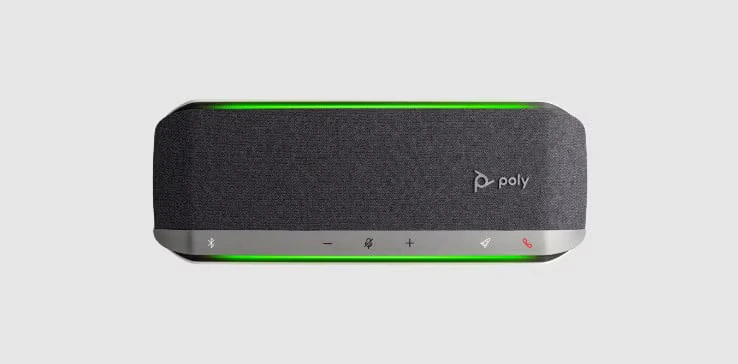
Bring Big, Crystal-Clear Sound to Every Meeting Room The Poly Sync 60 USB/Bluetooth Smart Speakerphone is engineered specifically for...
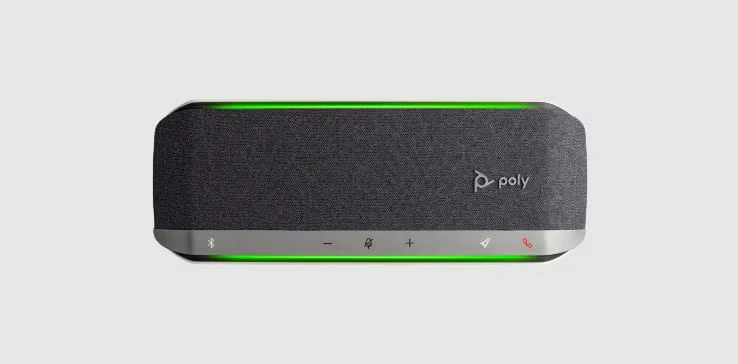
The Poly Sync 40 USB/Bluetooth® smart speakerphone is engineered for flexible workspaces and huddle rooms up to 5 meters x...
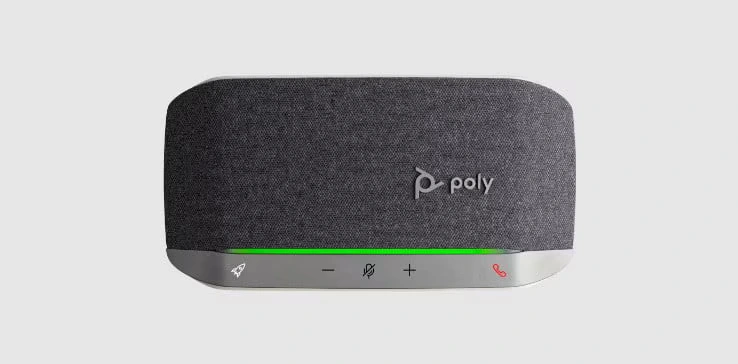
The Poly Sync 20 is a portable, personal smart speakerphone engineered to bridge the gap between high-ticket workspace productivity and...
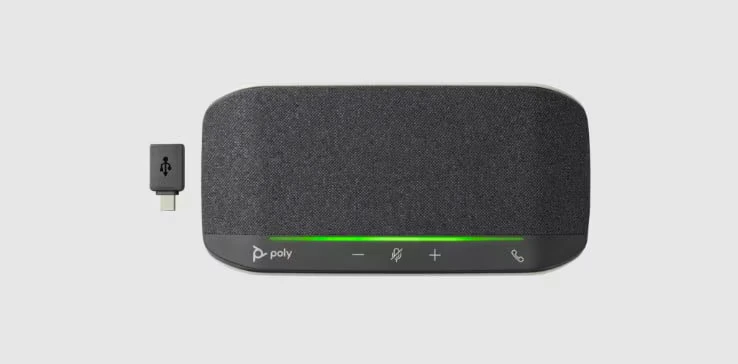
Turn any remote workspace or small home office into an enterprise-grade conference room with the Poly Sync 10 All-in-One USB...