August 24, 2026 Mahender Mahender
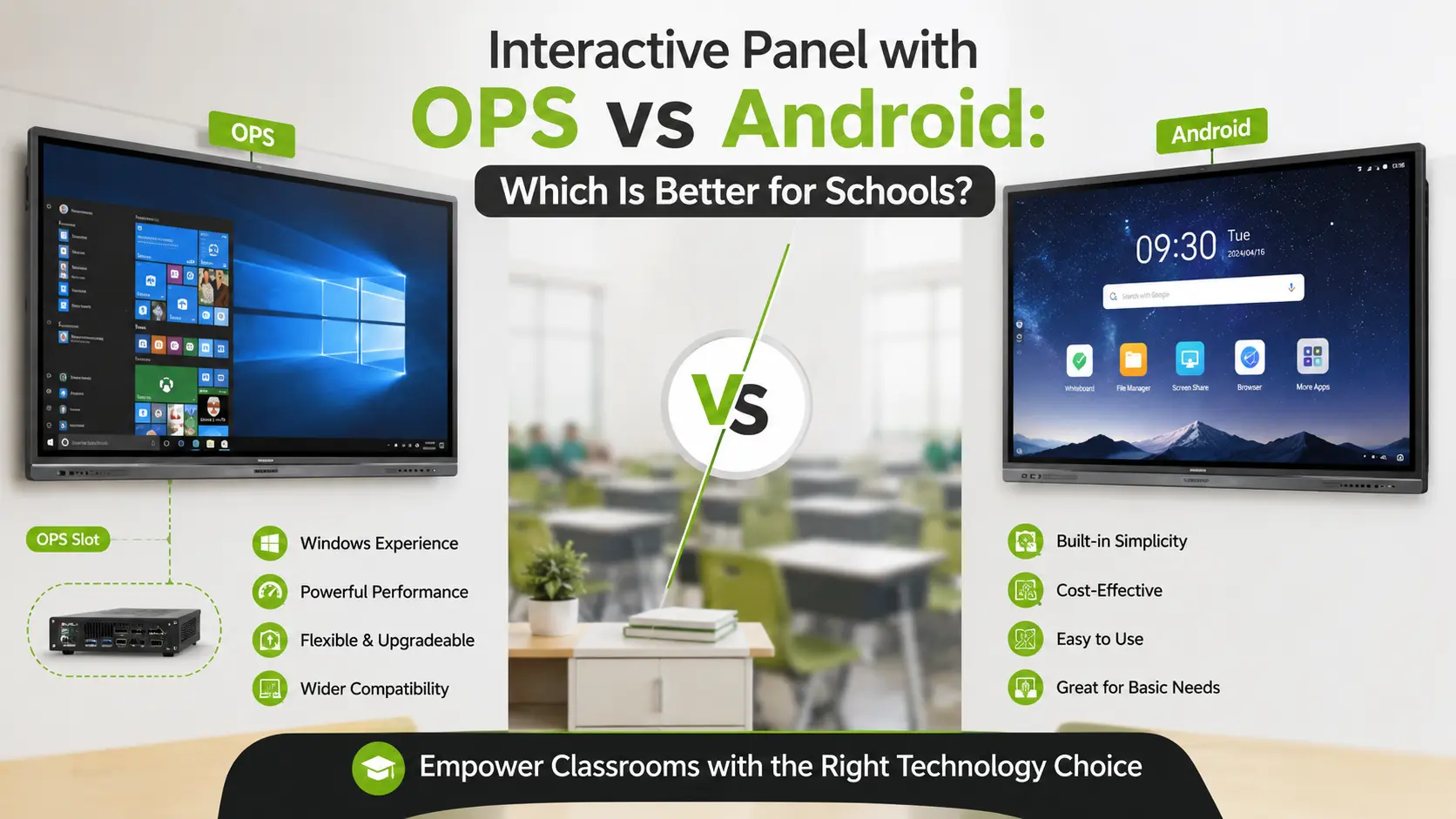
Choosing an interactive panel for a school is not simply a matter of comparing screen size, resolution, or touch points. One of the more important decisions is how the panel will run software: through its built-in Android system, through an OPS-based Windows PC, or through a combination of both.
This matters because a teacher may need very different tools from one classroom to another. A primary classroom may mainly require digital whiteboarding, educational apps, videos and web resources. A senior-secondary classroom may depend on Windows applications, Microsoft Office, specialised teaching software or browser-based systems. IT teams also have to consider device management, maintenance, upgrades and long-term support.
The key point is that an Interactive Panel with OPS and an Android interactive panel are not necessarily competing technologies in the strictest sense. An OPS module can add a separate Windows-based computing environment to a display that already has Android built in. Some displays therefore support both operating environments.
For schools that need Windows applications, desktop software, stronger computing flexibility or a dual-OS setup, an Interactive Panel with OPS is generally the more suitable choice.
For schools that mainly need browser-based teaching, Android apps, digital whiteboarding, video playback and straightforward classroom use, a good Android-based interactive panel can be sufficient.
The right choice depends less on the word “OPS” or “Android” and more on the software teachers actually use.
For many schools planning a long-term installation, a panel with an OPS slot can provide greater flexibility because the display can use its built-in operating system while also allowing a compatible OPS computer to be installed. However, the exact capabilities depend on the panel, OPS module and software configuration.

Factor | Interactive Panel with OPS | Android Interactive Panel |
| Main computing environment | Usually Windows through an OPS PC | Built-in Android |
| Windows desktop applications | Yes, when a Windows OPS module is installed | Generally not natively |
| Android apps | Usually available through the panel's built-in Android system, depending on model | Core operating environment |
| Microsoft Office desktop software | Supported through Windows OPS configuration | Web/mobile versions may be available depending on app support |
| Hardware upgrade flexibility | Higher because OPS module can potentially be replaced/upgraded | Primarily dependent on built-in hardware and manufacturer support |
| Installation | Requires compatible OPS module and panel slot | Generally simpler |
| Cable management | OPS computer is installed inside the panel | No separate PC required |
| Classroom whiteboarding | Supported | Supported |
| Browser-based teaching | Supported | Supported |
| IT management | Depends on panel and OPS configuration | Depends on manufacturer and management software |
| Maintenance | More components to manage | Fewer computing components |
| Best suited for | Schools needing Windows + display flexibility | Schools wanting simple, app-based classroom computing |
The table describes common configurations rather than every product on the market. Specifications, operating systems, Google services, management tools and OPS compatibility vary by manufacturer and model.

An Interactive Panel with OPS is an interactive flat-panel display that includes an OPS slot for a modular computer.
OPS stands for Open Pluggable Specification. Intel describes OPS as a standard for modular computing units that plug into an OPS slot on compatible interactive flat-panel displays. The design standardises the physical connection between the computer module and the display.
Instead of connecting a separate desktop computer beside the interactive panel, an OPS computer can be installed directly into the compatible slot on the rear of the display.
In a typical school installation, the arrangement may look like this:
Interactive panel → Built-in Android system + OPS slot → Windows OPS PC → Windows applications
This means a school can have access to the panel's built-in interactive functions while using a Windows environment when required.
For example, a teacher could use the Android interface for digital annotation and classroom apps, then switch to the OPS computer to run Windows-based teaching software or desktop applications.
Some manufacturers explicitly support switching between Android and Windows on compatible displays with an OPS computer.
An OPS module is essentially a compact computer designed to fit into a compatible display.
Depending on the model, an OPS PC can include:
For example, a current BenQ India OPS model lists a 12th-generation Intel Core i5 processor, Windows 11 Pro, 8 GB RAM and 512 GB SSD. These are specific product specifications, not universal OPS specifications; buyers should check the exact OPS module being quoted.
The main advantage is modularity. If the panel and OPS module are designed to work together, the computing component can be treated separately from the display itself.

An Android interactive panel is an interactive flat-panel display with Android as its built-in operating system.
The panel contains its own processor, memory, storage and software environment, allowing teachers to use classroom applications without connecting an external computer for everyday tasks.
Depending on the model, teachers may be able to use:
Newer education-focused panels can also provide access to Google services on models that have the required Google certification or licensing arrangement. For example, some current BenQ education displays use Android 15 and Google EDLA certification, while other models may use different Android versions or configurations.
The important point is that Android version alone does not tell you everything about an interactive panel. App availability, Google Play access, security updates, device management and manufacturer software support should all be checked before purchase.
No. An Interactive Panel with OPS and an Android interactive panel describe different aspects of the system.
Android describes the operating environment built into the panel. OPS describes a standardised modular computer interface that allows a compatible computing module to be installed inside the display.
This means a single interactive panel can potentially have:
Built-in Android + OPS slot + Windows OPS computer
That configuration can give the school two computing environments on one display.
However, not every panel with Android has an OPS slot, and not every OPS configuration automatically provides Windows. The buyer must check the exact panel and OPS module combination.
The biggest practical difference is software compatibility.
A standard Android panel is designed around the Android operating environment. This works well for applications available for Android and for browser-based teaching workflows.
An Interactive Panel with OPS can add a Windows environment when a compatible Windows OPS PC is installed. This can be important for schools already using Windows-based desktop software.
The software list used by the school should therefore be checked before selecting the panel.
Performance is not determined simply by whether a panel is called “OPS” or “Android.”
A high-end Android panel can have considerably more processing capability than an older or entry-level OPS computer. Likewise, a properly specified Windows OPS PC can handle desktop workloads that may not be practical on a particular Android system.
With OPS, the computing performance can be selected according to the module specification.
Buyers should compare:
Do not compare “Android” against “OPS” as though they are processor specifications. They are not.
This is one of the strongest reasons schools consider an OPS configuration.
An OPS computer can provide a Windows environment directly on the interactive panel. For schools using Windows-specific applications, this can reduce the need to connect a teacher's laptop every time a particular application is required.
A compatible OPS PC may also provide a more familiar desktop environment for teachers and IT administrators who already work with Windows systems.
However, schools should verify software licensing and hardware requirements before purchasing. An application that works on a Windows PC does not automatically mean that every OPS module will run it well.
Android has an important advantage in everyday classroom simplicity.
Teachers can use the panel's built-in operating system for tasks such as:
This can be particularly useful in primary and middle-school classrooms where lessons are largely browser- and app-based.
Some Google-certified education panels also provide Google services and access to Google Play applications. The exact availability depends on the manufacturer's certification and model configuration.
An OPS configuration can simplify the physical setup compared with keeping a separate mini-PC beside the display.
Intel describes OPS as a modular architecture designed to plug directly into compatible displays, helping reduce cable complexity and simplify installation and maintenance.
For schools with dozens of classrooms, this can have practical value.
A typical setup might otherwise involve:
Panel + external PC + power cable + display connection + USB connection + network connection
With an integrated OPS computer, many of these connections can be contained within the display configuration.
However, the panel still needs appropriate power and network connectivity, and the exact installation requirements vary by model.
This is where OPS becomes particularly interesting for school IT teams.
With a conventional Android-only panel, the computing hardware is integrated into the display. Upgrades and repairs therefore depend heavily on the manufacturer's design and service policy.
With an OPS-based system, the computing module is modular.
If a school needs more computing performance later, the OPS computer may be replaceable with another compatible module. Intel identifies modularity, upgrades and easier maintenance as important characteristics of the OPS architecture.
But this should not be treated as a guarantee that every future OPS module will work with every existing panel. Compatibility must be confirmed with the manufacturer.
For a school with centralised IT management, the operating environment matters.
A Windows OPS system can fit into an existing Windows-oriented IT environment, depending on the organisation's policies and the Windows edition used.
Some interactive displays also provide central device-management platforms, user authentication, network controls and security features on the Android side.
The correct question is therefore not:
“Is Android secure or is OPS secure?”
A better question is:
“What security, management and update capabilities does this specific panel and computing configuration provide?”
Ask the supplier about:
There is no single configuration that fits every school.
The right choice depends on curriculum requirements, existing software, IT infrastructure and how teachers use the classroom display.
Android may be sufficient for many primary-school classrooms.
If teachers mainly use whiteboarding, videos, browser resources, educational apps and presentations, an Android-based interactive panel can keep the classroom setup straightforward.
However, an OPS-capable panel can still be valuable if the school wants the option of running Windows applications later.
OPS becomes more attractive when subject-specific Windows software is involved.
Science, mathematics, design, computer education and other specialised subjects may require applications that are designed primarily for Windows.
The school should identify the software used by each department before finalising the specification.
A panel with OPS can be useful where the display needs to function as a larger Windows workstation.
Higher-education environments may involve presentations, research software, desktop applications, browser-based platforms and collaboration tools.
However, Android-only displays can also work well for lecture delivery and collaborative teaching when the institution's applications are cloud-based.
OPS can be a strong option when the school already has a Windows-based IT environment.
The IT team can potentially manage the OPS computer within familiar Windows administration processes, subject to the selected Windows edition, hardware and institutional policies.
At the same time, buyers should evaluate the Android management capabilities of the panel rather than assuming they are limited.
Yes, some interactive panels support both their built-in Android environment and a Windows OPS computer.
The two environments operate as separate computing systems within the same display configuration.
For example:
Manufacturers offer dual-system configurations on selected interactive displays. BenQ, for example, documents switching between Android and Windows on compatible displays equipped with an OPS computer.
The exact switching process and available features vary by manufacturer.
There is no single reliable price for an Interactive Panel with OPS because the total cost depends on the complete configuration.
A school quotation can vary according to:
This is why two interactive panels with similar screen sizes can have significantly different quotations.
When comparing prices, ask suppliers to provide a complete configuration sheet, not only the display price.
For example, a quotation stating “86-inch interactive panel with OPS” does not tell you whether the OPS computer contains an entry-level processor or a higher-performance configuration.
Ask the supplier to clearly list:
This makes supplier-to-supplier comparison much easier.
Buying the panel first and checking compatibility later can create unnecessary problems.
Use the following checklist before approving a purchase.
Ask teachers and department heads:
This gives the procurement team a practical software requirement instead of choosing hardware based only on specifications.
Do not assume that an OPS module will work simply because both products mention OPS.
Verify:
For the built-in Android environment, verify:
A newer Android version can be useful, but long-term update support is equally important.
Clarify whether the warranty covers:
Also ask whether installing or replacing an OPS module affects warranty coverage.
For schools, downtime matters.
Before purchase, ask:
Do not judge support only by the brand name. Check the actual service arrangement offered for your location.
A product demonstration is particularly useful for interactive panels.
Test the exact model you are considering.
Try:
A specification sheet cannot show how comfortable the panel is for a teacher to use during a real lesson.
Choose an Android-focused interactive panel when:
In this situation, paying extra for a powerful OPS computer may not provide enough practical value.
Choose an Interactive Panel with OPS when:
For larger deployments, the ability to standardise a panel and add compatible OPS computing modules can also make procurement and classroom configuration easier.
OPS is worth considering when the school has a genuine requirement for Windows computing or wants the flexibility of a modular PC inside the interactive panel.
It may not be worth paying extra for an OPS computer if teachers only use digital whiteboarding, browser-based platforms, videos and Android applications.
The decision should therefore be based on software requirements rather than hardware specifications alone.
A simple classroom does not automatically become better because it has a more powerful processor. Likewise, a school that depends on Windows software may find an Android-only panel restrictive.
For a new school installation, a practical approach is to divide classrooms according to actual requirements.
Android interactive panel
Suitable for:
Interactive panel with OPS
Suitable for:
Android panel + OPS slot, with OPS PC added where required
This approach can provide a common display platform while allowing selected classrooms to receive additional computing capability.
The best configuration depends on the school's curriculum and IT strategy.
An Interactive Panel with OPS is a touch-enabled interactive display that includes a standardised slot for a modular computer. A compatible OPS PC can provide a Windows computing environment directly through the display without requiring a separate external desktop computer.
OPS is generally better when a school needs Windows applications, desktop software or a modular computing setup. Android can be the better choice when teachers mainly use web resources, Android apps, whiteboarding and multimedia.
Yes, many panels with OPS also have a built-in Android environment. The OPS computer and Android system can operate as separate environments when the panel supports dual-system functionality.
Not simply because it uses Android. Windows generally requires a compatible computing platform such as an OPS PC or another supported external computer. Buyers should check whether the specific panel supports an OPS slot or Windows input configuration.
Usually, no. On a panel designed for dual-system operation, the OPS module adds another computing environment rather than replacing the panel's built-in Android system.
No. An OPS computer is useful only when the classroom requires the additional computing capabilities it provides. For basic browser, whiteboard, video and Android-app use, the built-in system may be sufficient.
Not automatically. Performance depends on the processor, RAM, storage and software configuration of the OPS computer. A school should compare the exact hardware specifications rather than assuming that every OPS system is faster than every Android panel.
Potentially, but compatibility depends on the panel, OPS specification, manufacturer and supported modules. Schools should confirm upgrade options before assuming that future modules will work with an existing display.
Check the Android version, supported applications, Google services or certification where required, security updates, firmware support, device management and storage. These capabilities vary by manufacturer and model.
It can be, particularly when a higher-spec OPS computer and Windows licence are included. However, the total price varies according to display size, hardware, software, accessories, installation, warranty and support.
Neither operating system is universally better. Android is often sufficient for app- and browser-based teaching, while Windows is more suitable when teachers depend on desktop applications. An OPS-equipped panel can provide access to both on compatible models.
Compare the exact panel model, Android version, processor, RAM, storage, OPS compatibility, OPS specifications, software support, touch performance, connectivity, warranty, installation, training and after-sales service. A live demonstration is also recommended before a large school deployment.
For most schools, the better choice depends on the software and IT requirements of the classroom.
If teachers mainly use whiteboarding, browsers, educational apps, videos and cloud-based platforms, a well-specified Android interactive panel can provide everything they need without the additional cost and management of an OPS computer.
If the school requires Windows applications, desktop software, specialised academic programs or a more flexible computing platform, an Interactive Panel with OPS is usually the stronger option.
For schools that want flexibility, a panel with built-in Android plus an OPS slot can be the most practical configuration. It allows everyday classroom work through Android while providing a path to Windows computing when required.
The most important buying rule is simple: choose the operating environment based on the applications teachers actually use, then compare the exact hardware, support and upgrade options offered with the panel.

 Interactive flat Panel
Interactive flat Panel
Interactive flat Panel
 Interactive flat Panel
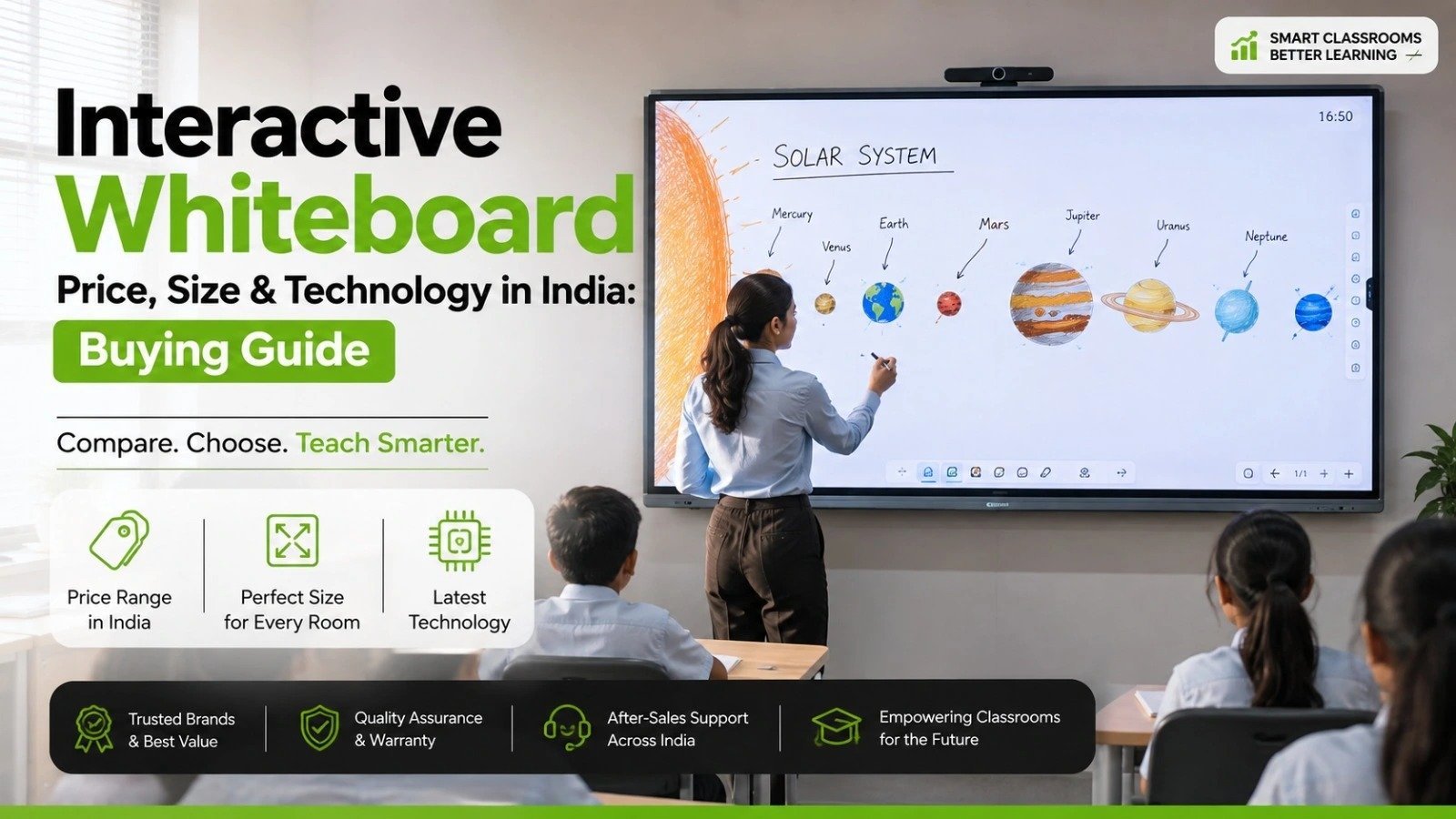 Interactive flat Panel
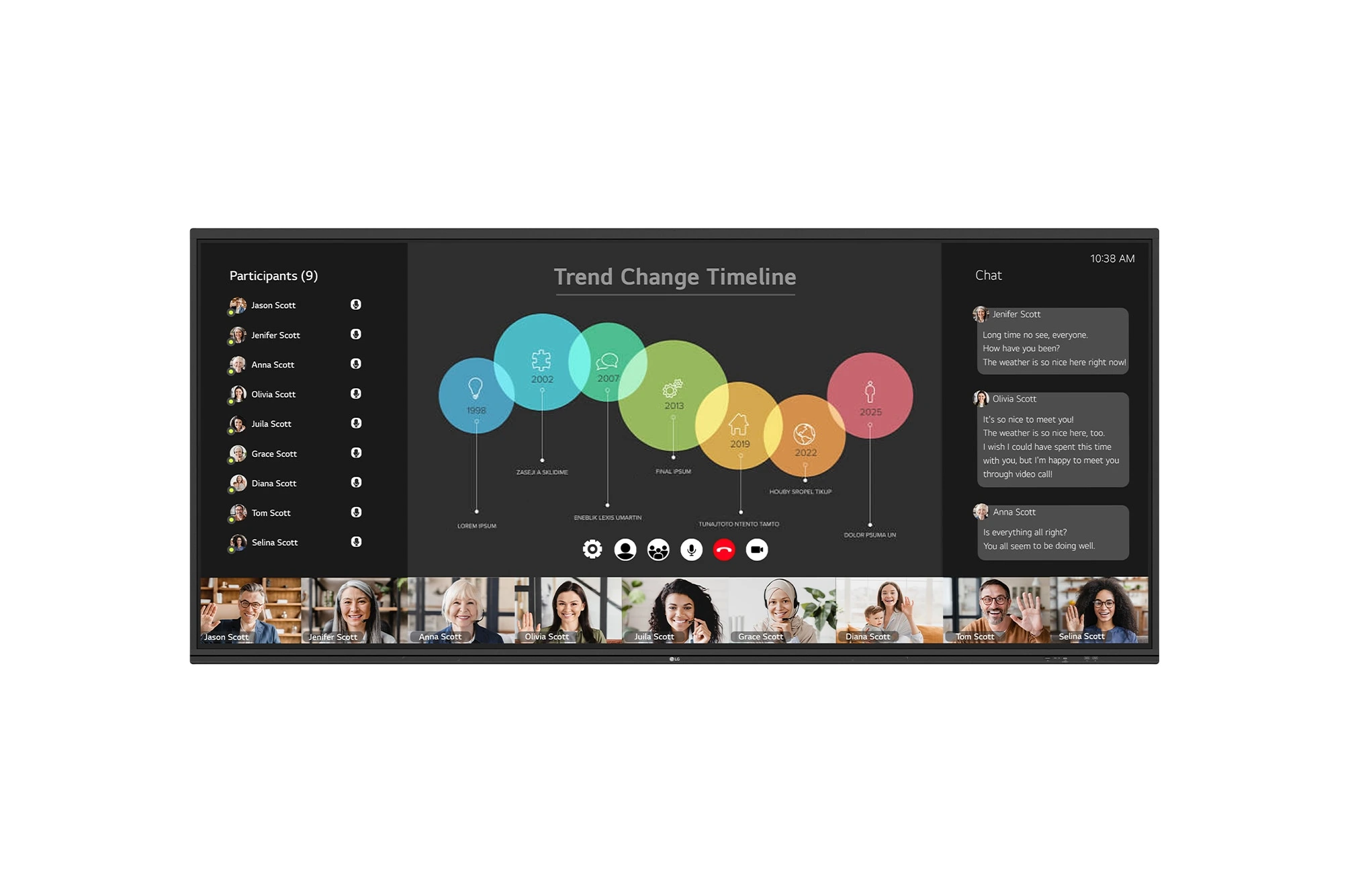
The LG CreateBoard 105TR5WP-I is a premium 105-inch 5K UltraWide (21:9) interactive display designed for modern meeting rooms, hybrid collaboration,...
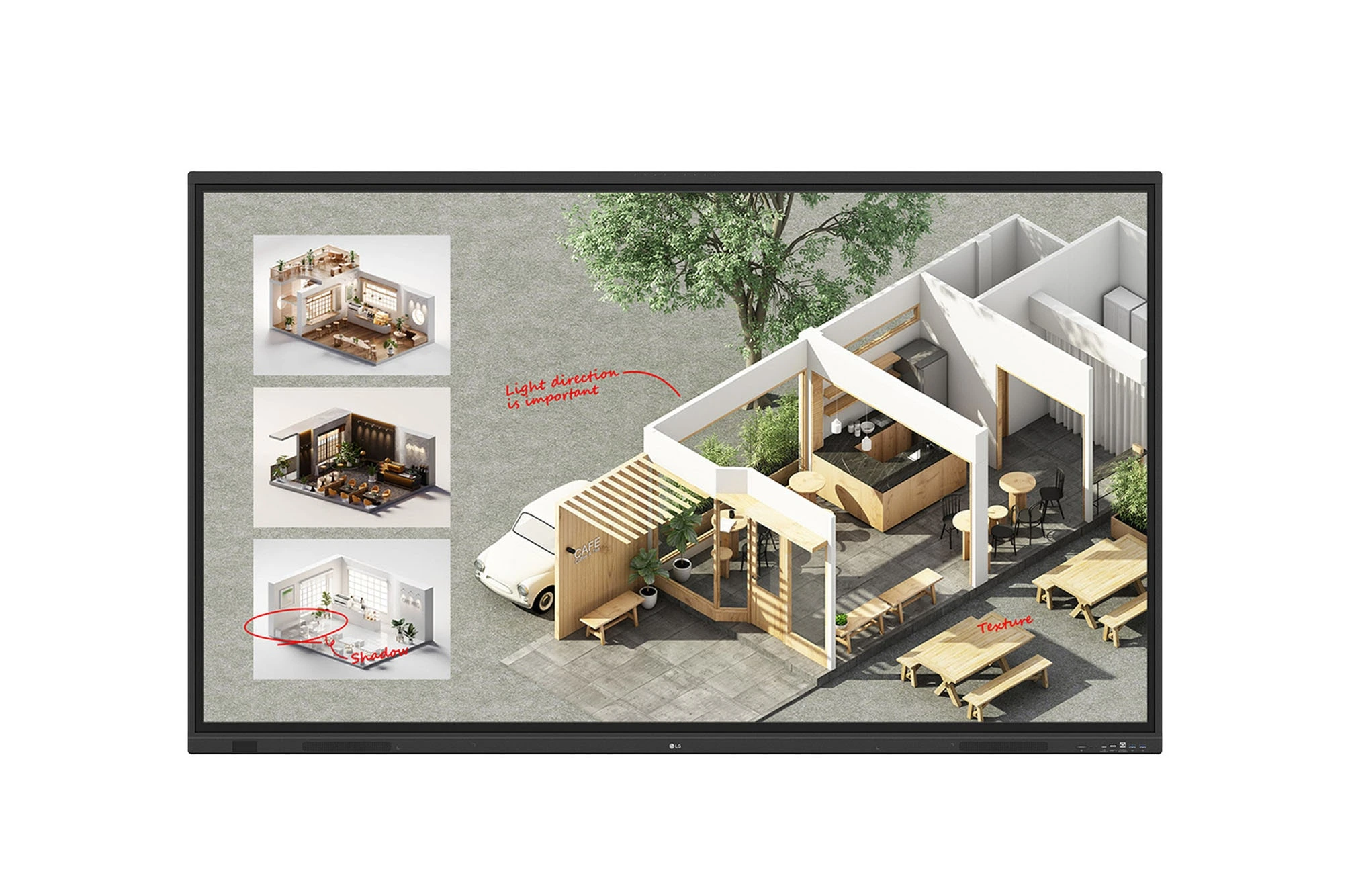
The LG CreateBoard Standard 86TR3DQ-I is an 86-inch 4K UHD Interactive Flat Panel Display designed for classrooms, corporate meeting rooms,...
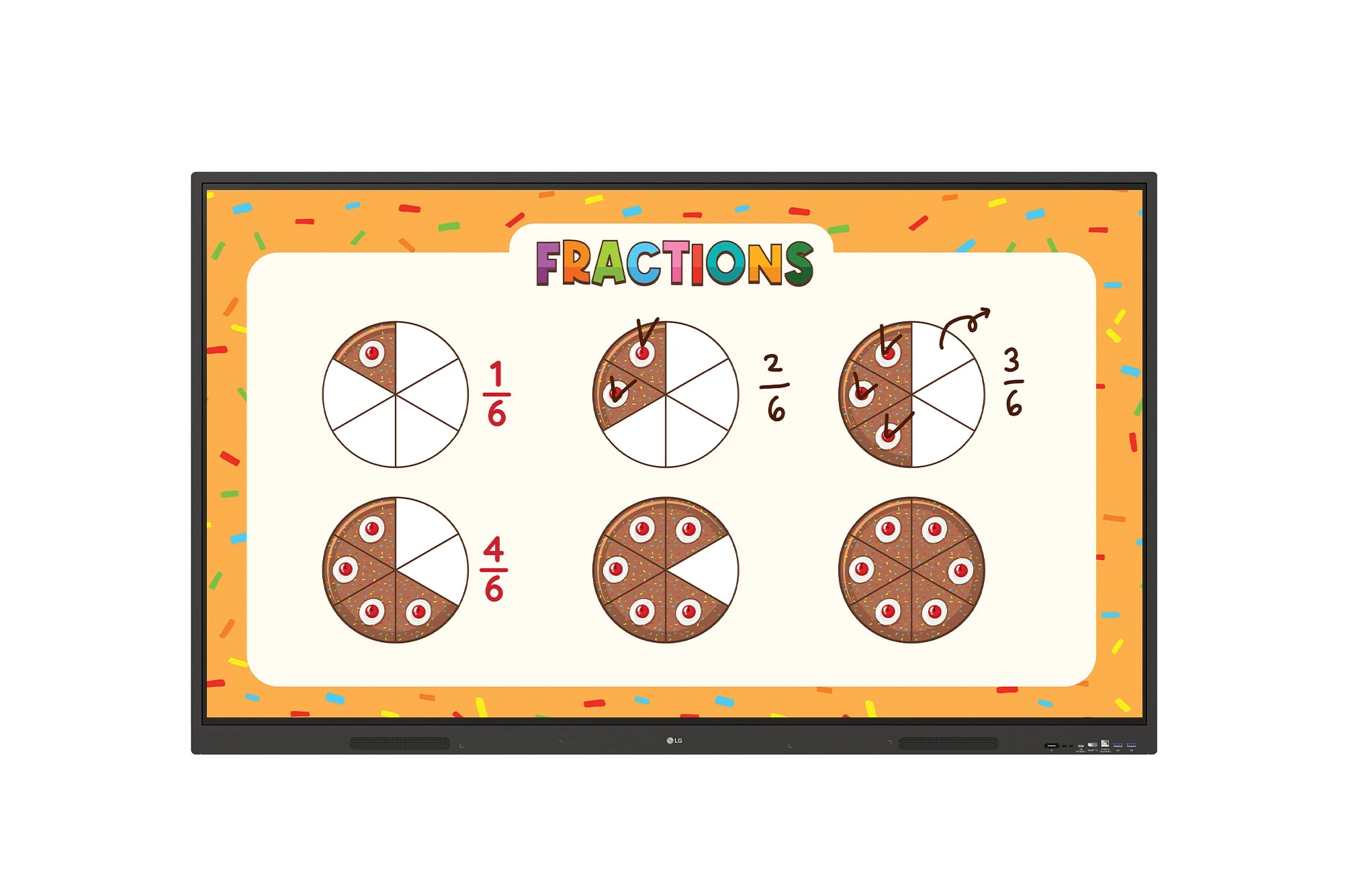
The LG CreateBoard 86TR3ER-I is an 86-inch 4K UHD interactive flat panel designed for modern classrooms, corporate meeting rooms, and...
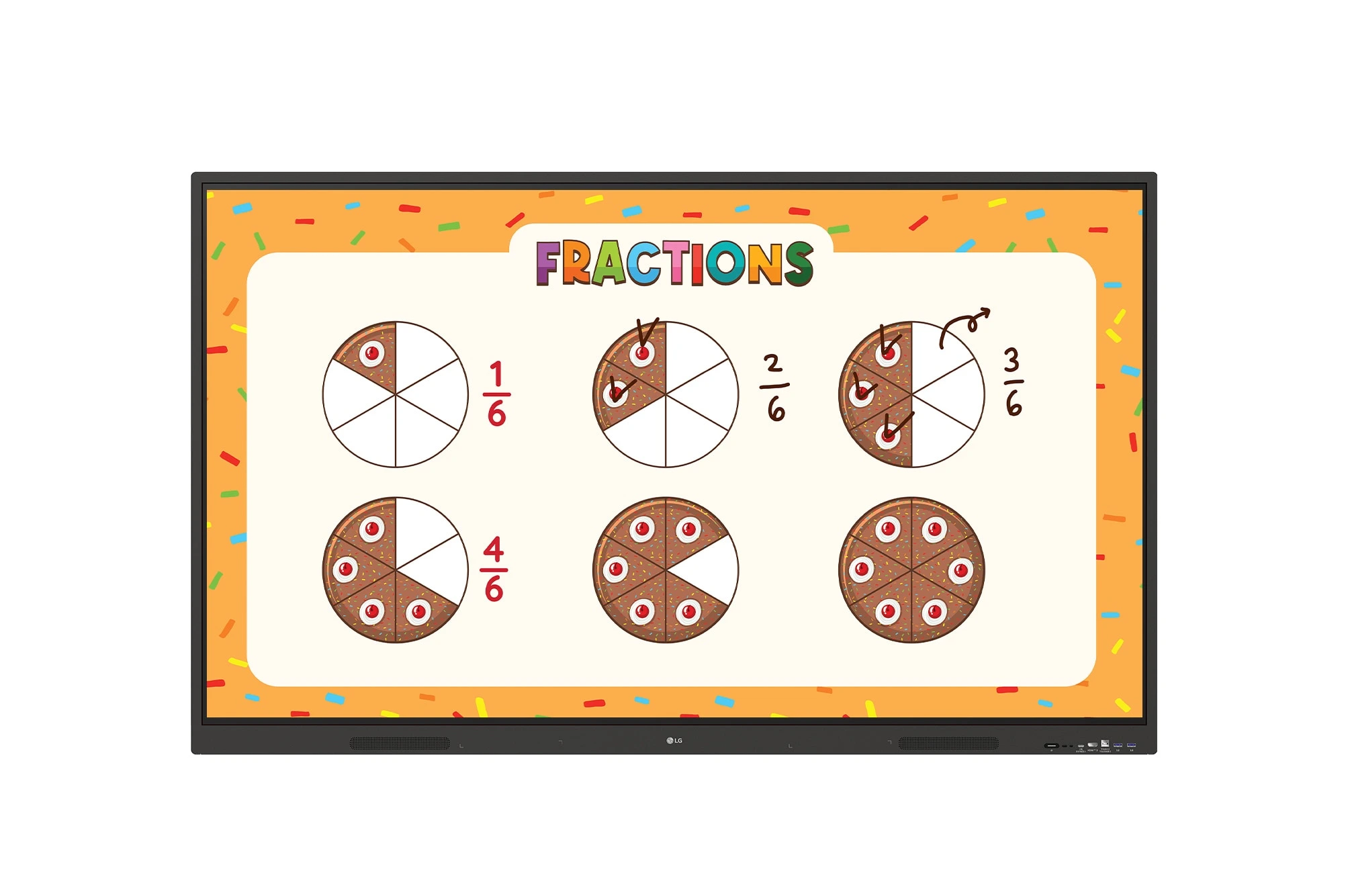
The LG CreateBoard 75TR3ER-I is a premium 75-inch 4K UHD Interactive Flat Panel designed for classrooms, training centers, and corporate...