July 13, 2026 Mahender Mahender
![Smart Board vs Interactive Panel for Classroom [2026]](https://elactree.com/assets/uploads/blogs/1783930932_332ac1c407b373b1ccb4.png)
For most schools setting up a new digital classroom in 2026, an interactive panel is the more practical option to consider first. It brings the display, touch interface, digital whiteboard and screen-sharing tools together in one unit. There is no projector to align, and teachers can move from writing on the board to opening a presentation or explaining a PDF without changing the teaching setup.
That does not make every smart board a poor choice. A school with straightforward teaching needs, an existing classroom setup or a tighter budget may find a smart board perfectly adequate. The important point is to compare the actual technology, software and support behind the product rather than buying on the strength of the name printed on the quotation.
A smart board is an interactive teaching surface or display that lets teachers work directly with digital content. Instead of standing beside a computer and controlling a presentation with a mouse, a teacher can write, draw, highlight or move content on the board using a finger or stylus.
In day-to-day teaching, that can mean annotating a science diagram, solving a maths problem step by step, marking a PDF, playing a video or saving the notes written during a lesson. The experience is designed to keep the teacher at the front of the classroom and make digital material easier to use.
There is one complication for buyers: the term “smart board” is used quite loosely. Some suppliers use it for projector-based interactive boards, while others use it for modern touchscreen displays. Before comparing prices, ask for the exact model and confirm whether the product has its own integrated display or relies on a projector.

An interactive panel, often called an interactive flat panel or IFP, is a large touchscreen display built for teaching, presentations and collaborative work. The screen is integrated into the unit, so a separate projector is not needed for normal use.
Depending on the model, an interactive panel may offer a 4K display, anti-glare glass, multi-touch writing, an Android operating system, digital whiteboard software, wireless screen sharing, built-in speakers and optional Windows computing through an OPS module. Some panels also include screen recording, split-screen tools and video-conferencing support.
In practical terms, the panel can serve as the classroom whiteboard, presentation screen and interactive teaching display. That all-in-one approach is one of the main reasons schools are considering interactive panels when upgrading classrooms.

Not necessarily. In the market, the two names are often used as if they mean the same thing. Technically, however, “smart board” is a broader description, whereas an interactive panel refers to a flat-panel touchscreen with an integrated display.
The safest buying rule is simple: ignore the label for a moment and compare the actual specification of the product.
A projector-based interactive board and an interactive flat panel may both allow teachers to write on digital content, but the display technology is very different. An interactive panel produces the image on its own screen. This avoids projector shadows and removes the need to align a projected image with the writing surface. If both products being compared are modern flat-panel displays, the difference may be much smaller, which is why model-level comparison matters.
Many current interactive panels are available with 4K UHD resolution. That can be useful when a lesson includes small text, detailed diagrams, maps, charts or high-resolution images. Resolution alone, however, does not tell the whole story. Schools should also check glare, brightness, viewing angle and how easily students in the last row can read the screen. A live demonstration in the intended room is far more useful than judging a panel from a brochure.
The writing experience is one of the first things a teacher will notice. A good classroom display should respond quickly and accurately when writing, drawing or erasing. When comparing models, look at touch points, writing latency, palm rejection and stylus support. During a demonstration, ask a teacher to write a full sentence, draw a diagram, erase a small section and annotate a PDF. These simple tasks reveal more than a long list of technical claims.
Most modern classroom panels use an Android-based operating system, while selected models support a Windows OPS computer. The right setup depends on the applications teachers actually use. If the school relies on Microsoft Office, Google Workspace, web-based learning tools or specific educational software, compatibility should be checked on the exact model. Do not assume that every Android panel supports every application or service in the same way.
Interactive displays can make digital lessons easier to involve students in. On supported models, multiple users can write on the screen, a teacher can cast a device wirelessly, or the class can work with split-screen content. Screen recording and digital annotation may also help with lesson review. These tools are useful, but they are only effective when teachers know how to fit them into a lesson. Product training should therefore be part of the buying discussion.
A flat-panel interactive display does not use a projector lamp, so lamp replacement and projector alignment are no longer routine concerns. The panel will still need sensible care, software updates and occasional technical support. Schools should ask who handles warranty claims, whether on-site service is available, how spare parts are managed and what response time the supplier can realistically provide.
A classroom display is rarely bought for one academic year. Before purchasing, consider how the school may teach three or five years from now. Software updates, wireless presentation, Windows expansion, hybrid teaching and device connectivity may become more important over time. At the same time, paying for features that teachers will never use adds little value. The best product is the one that fits the school's teaching workflow and has dependable support behind it.
For a school building a new digital classroom, an interactive panel is usually the stronger starting point. The integrated screen, direct touch input and digital whiteboard tools make it easier to create a clean, self-contained classroom setup. Wireless presentation and optional Windows support can add flexibility where the school needs it.
A smart board may still make sense where the requirement is basic interactive teaching, the budget is limited or the institution already has compatible equipment. There is no benefit in paying for advanced collaboration features if the teaching team does not plan to use them.
Our recommendation: for a new classroom, evaluate interactive panels first. Then compare the shortlisted models on display quality, writing experience, software, warranty, teacher training and local service.
There is no universal screen size for every classroom. The right choice depends on room dimensions, seating layout, viewing distance and the type of content teachers display.
Treat these sizes as a starting point, not a fixed rule. A 65-inch screen may work well in one room and feel undersized in another. Check the distance of the last row, the size of text normally shown, mounting height, viewing angle and ambient light before placing the order.
Price is often the first question schools ask, but it is also one of the easiest areas to compare incorrectly. Two panels with the same screen size can be priced very differently because the processor, memory, touch system, software, OPS configuration, warranty and service package are not the same.
Instead of comparing only the final amount on a quotation, ask every supplier to provide the same set of details: exact model number, screen specification, Android version, processor, RAM, storage, touch capability, connectivity, OPS status, included software, warranty, installation, teacher training and after-sales support.
Buying tip: compare the complete classroom solution, not simply the price of the panel.
A school's board or curriculum does not automatically determine which interactive display it should buy. The better question is how teachers plan to use digital content in the classroom.
Schools that regularly use presentations, videos, digital lesson resources, online tools and collaborative activities may benefit more from an interactive panel. Before purchasing, academic leaders and the IT team should review the teaching requirements together. This helps prevent a common problem: buying expensive technology that looks impressive during installation but is rarely used to its full potential.
Yes. Interactive panels can be particularly useful where instructors explain detailed visual material. Engineering diagrams, medical illustrations, mathematical problems, coding demonstrations, financial charts and PDF documents can all be displayed and annotated on the screen.
For larger rooms, a 75-inch or 86-inch display may be worth evaluating, but the final decision should be based on viewing distance and room layout rather than student count alone.
In many classrooms, yes. An interactive panel displays content directly on its own screen and does not need an external projector for normal use. This removes projector shadows, lamp replacement and alignment from the classroom setup.
A projector can still be suitable for very large spaces or specialised projection requirements. The choice should reflect the room and the way content is presented.
Basic functions such as digital writing, whiteboarding, local presentations, PDF annotation and playing files stored on the device or a USB drive can generally be used offline, depending on the installed software.
Internet access is needed for web browsing, cloud storage, online video, video conferencing and web-based learning applications. Schools should verify the offline features of the exact model and software package before purchase.
Many interactive panels support Windows through a compatible OPS computer or an externally connected Windows device. An OPS module can turn the panel into a Windows-based classroom computer without a separate desktop tower.
Before adding an OPS computer, check the processor, RAM, storage, Windows licence and the software teachers need to run. The configuration should be chosen for the workload rather than simply selecting the highest specification available.
What is the exact model number?
What are the display resolution and screen specifications?
How many touch points are supported?
Which Android version is installed?
What is the software update policy?
Is Windows OPS included or optional?
Which whiteboard and screen-sharing tools are included?
What exactly does the warranty cover?
Are installation and teacher training included?
Is on-site technical support available in our city?
Ask for the answers in writing. It becomes much easier to compare quotations when every supplier is being measured against the same checklist.
Supports interactive teaching
Allows finger and stylus input
Makes digital annotation easier
Supports multimedia lessons
Can encourage student participation
Allows lesson notes to be saved digitally
The term covers different product technologies
Some systems may require external hardware
Specifications vary widely between models
Teachers may need initial training
Integrated flat-panel display
4K display options are widely available
Direct touchscreen interaction
No projector required for normal use
Digital whiteboard tools
Wireless collaboration on supported models
Lower projector-related maintenance
Android and optional Windows configurations
Premium configurations can have a higher initial cost
Some advanced features may never be used
Software experience differs between manufacturers
After-sales service depends on the brand and supplier
Both technologies can make digital teaching more practical. The better choice depends on what the institution expects teachers to do with the display every day.
For most schools creating a new digital classroom in 2026, an interactive panel is the more sensible product to evaluate first. It offers an integrated display and touch interface and can support whiteboarding, multimedia lessons, wireless presentations and optional Windows computing.
That said, schools should be cautious of buying language such as “AI-powered” or “future-ready” without checking what the feature actually does. A useful specification is one that solves a real teaching need.
Compare the display, touch performance, operating system, software compatibility, update policy, warranty, installation, teacher training and after-sales support. The best classroom display is not necessarily the model with the longest feature list. It is the one teachers can use confidently and the school can support over the long term.
Not always. Smart Board is often used as a broad term for interactive classroom technology. An interactive panel specifically refers to a flat-panel touchscreen with an integrated display.
For most new digital classroom installations, an interactive panel is generally the stronger option to evaluate because it combines the display and touch interface in one system. The final choice should still be based on the exact model and teaching requirements.
No. An interactive panel has its own integrated display and does not require an external projector for normal operation.
Schools commonly evaluate 65-inch displays for smaller rooms, 75-inch displays for medium classrooms and 86-inch displays for larger classrooms. Viewing distance and room layout should determine the final size.
Yes. Education-focused interactive panels are designed for direct touch input and generally support finger or compatible stylus writing.
Yes. On multi-touch models, more than one user may be able to interact with the display at the same time. The supported number of touch points depends on the model.
Many basic functions can work offline, including whiteboarding, local presentations and PDF annotation. Online services, cloud applications and web content require internet access.
Many models support Windows through an optional OPS computer or a connected Windows device. Compatibility should be confirmed for the exact panel.
It can be, when the setup includes compatible conferencing software, audio, camera or microphone hardware where required, and a reliable internet connection.
The price varies with screen size, hardware, touch technology, operating system, OPS configuration, software, warranty, installation and service. Detailed like-for-like quotations are more useful than comparing screen size alone.
Check the display specification, writing experience, Android version, software compatibility, connectivity, OPS support, warranty, installation, teacher training and local after-sales service.


 Interactive flat Panel
Interactive flat Panel
Interactive flat Panel
 Interactive flat Panel
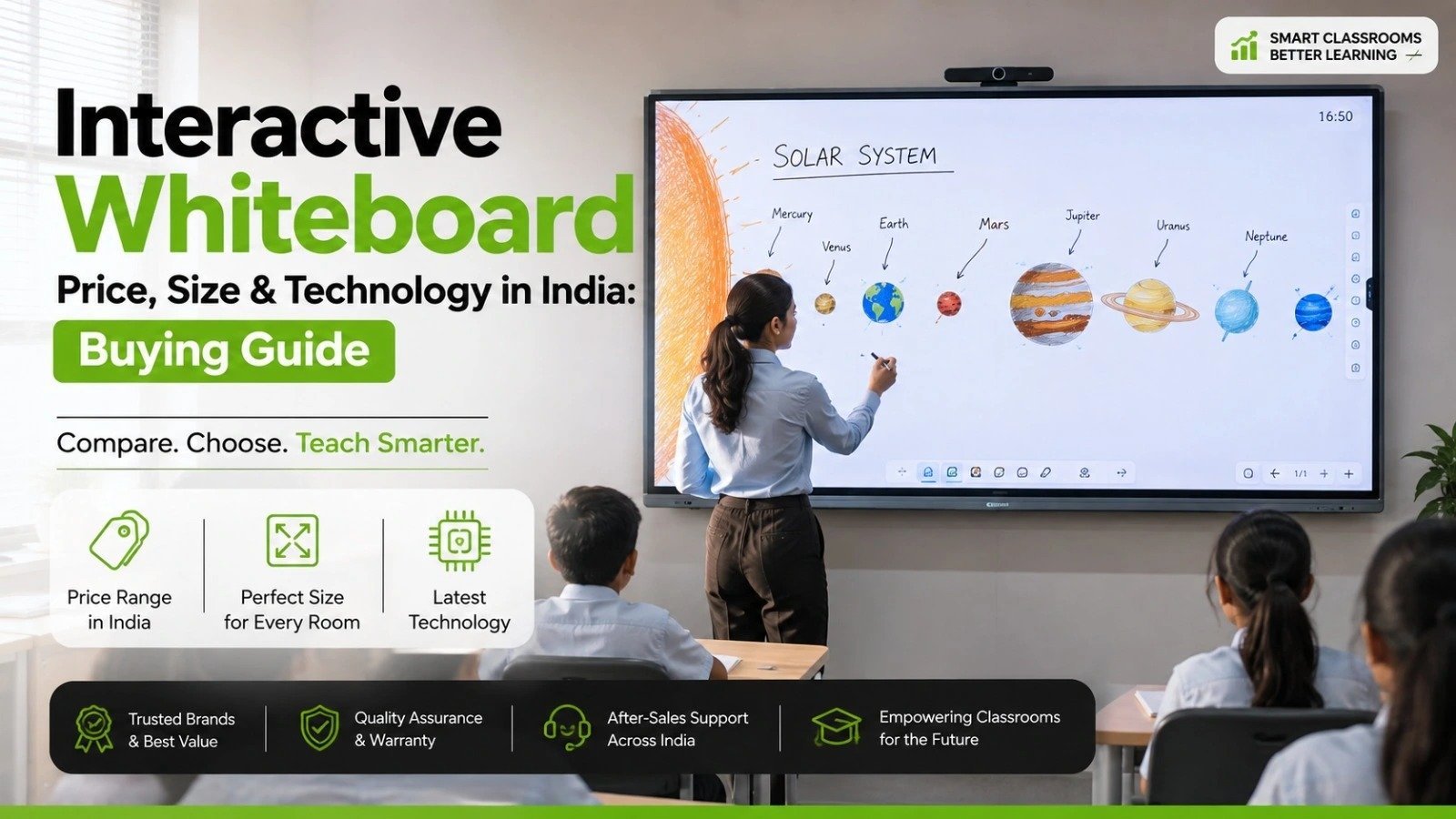 Interactive flat Panel
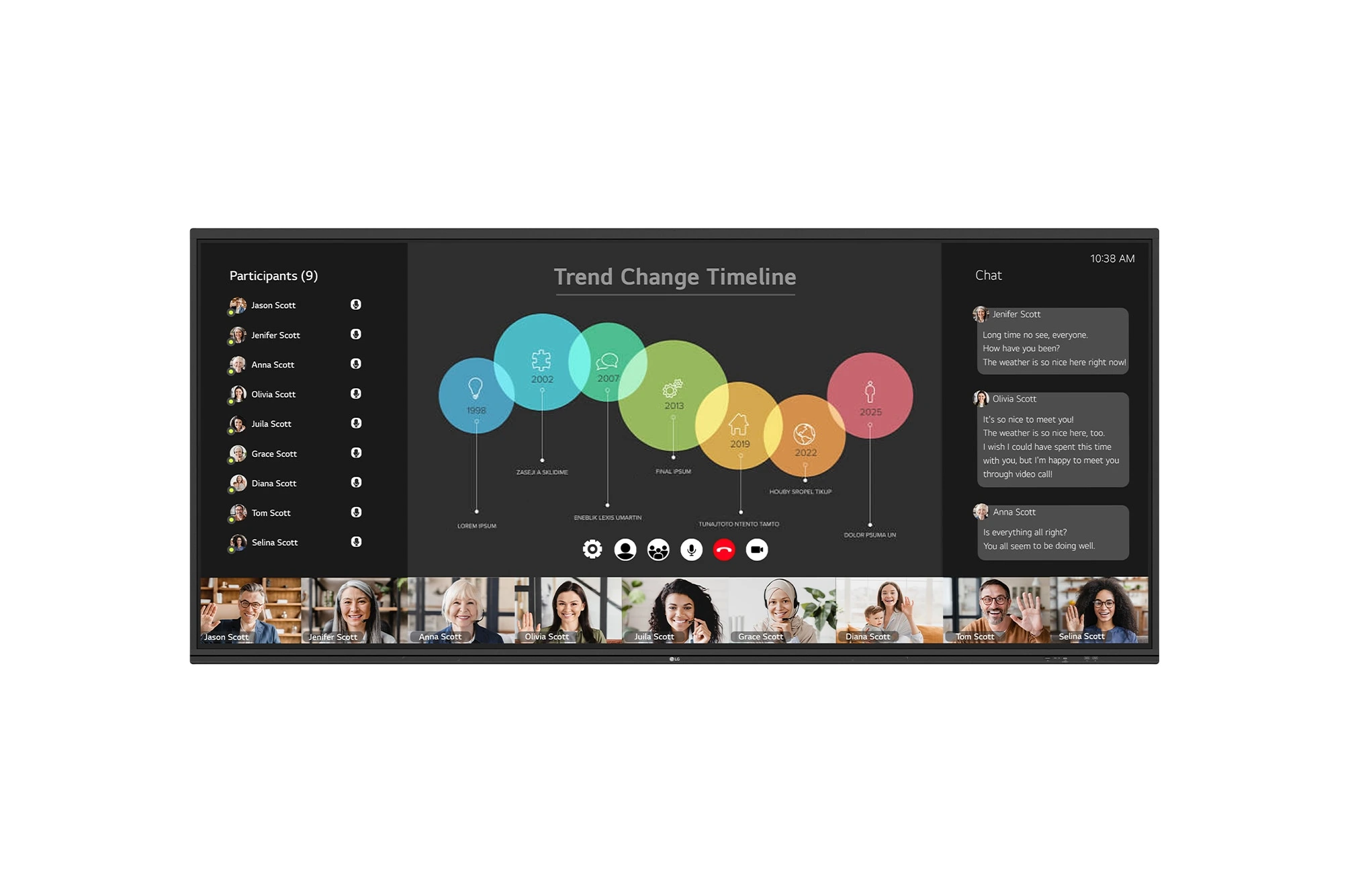
The LG CreateBoard 105TR5WP-I is a premium 105-inch 5K UltraWide (21:9) interactive display designed for modern meeting rooms, hybrid collaboration,...
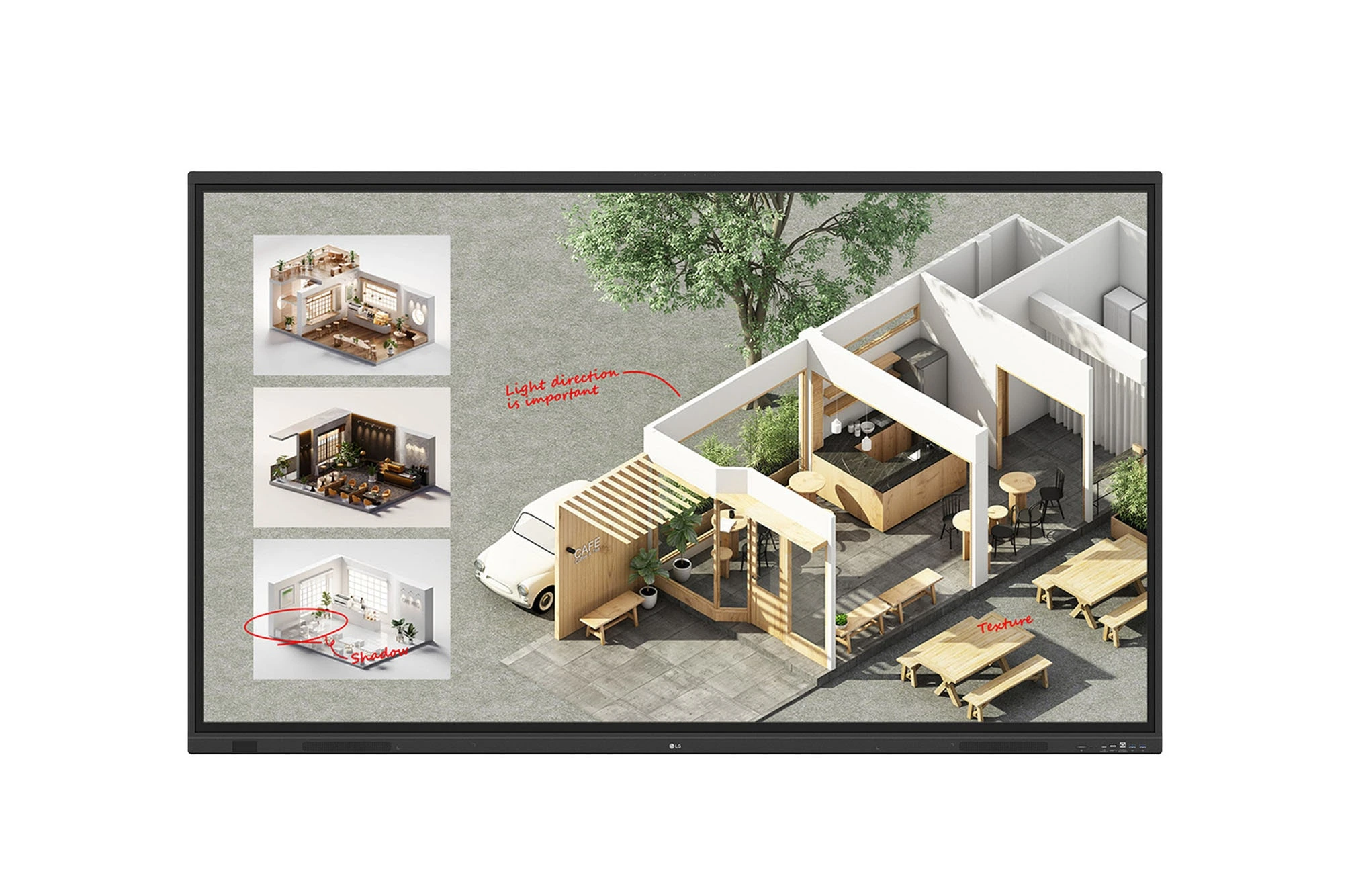
The LG CreateBoard Standard 86TR3DQ-I is an 86-inch 4K UHD Interactive Flat Panel Display designed for classrooms, corporate meeting rooms,...
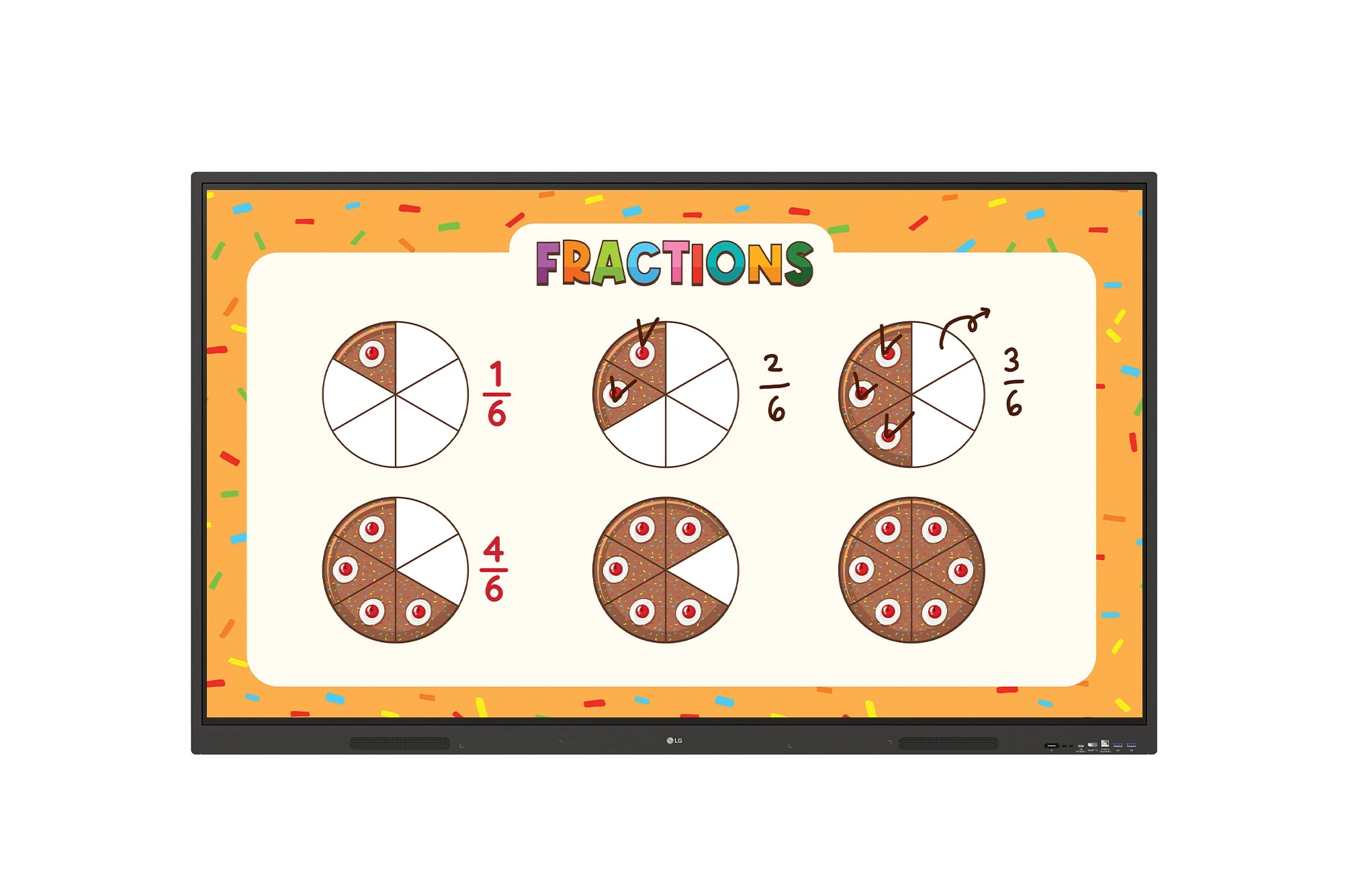
The LG CreateBoard 86TR3ER-I is an 86-inch 4K UHD interactive flat panel designed for modern classrooms, corporate meeting rooms, and...
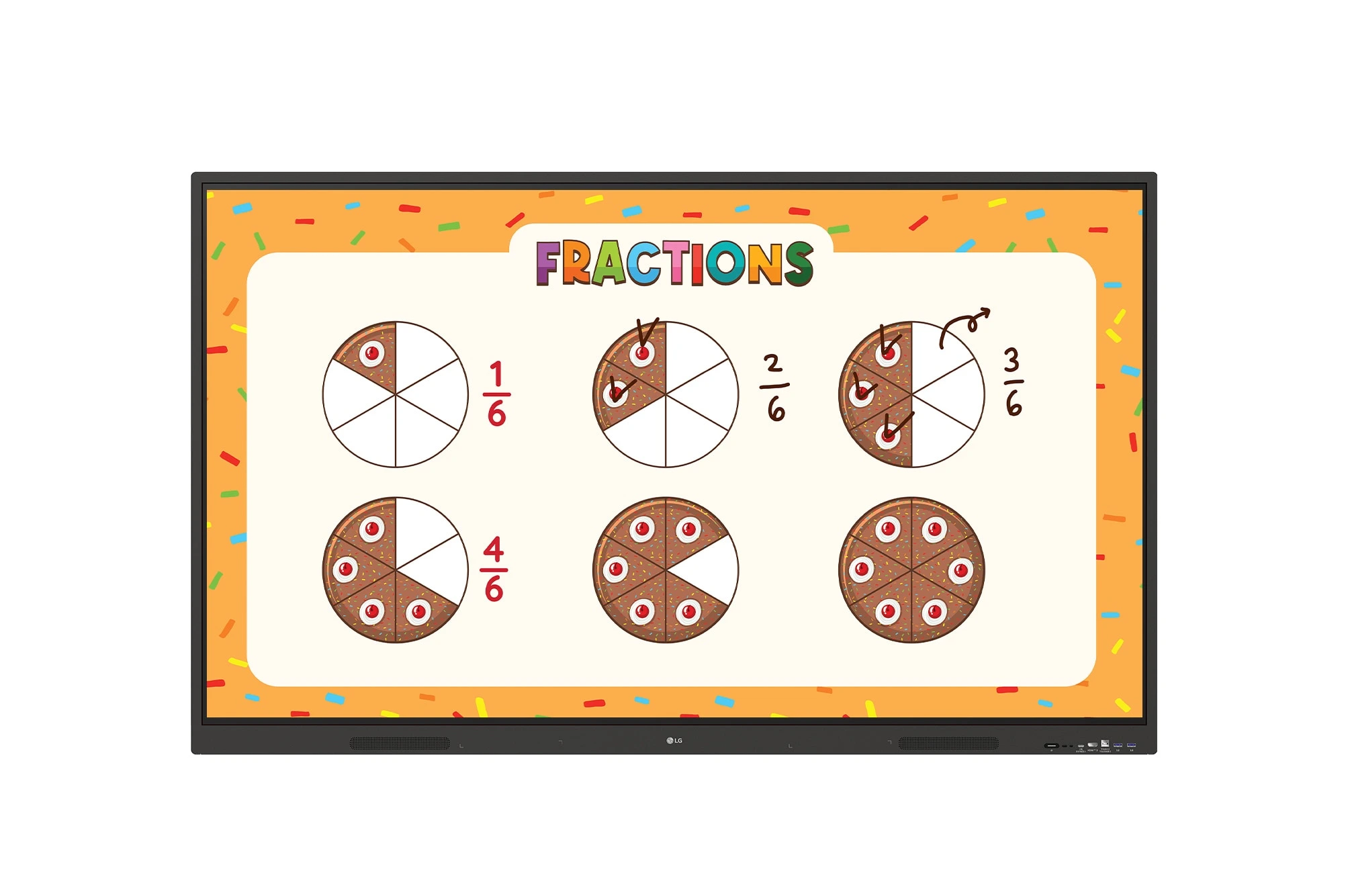
The LG CreateBoard 75TR3ER-I is a premium 75-inch 4K UHD Interactive Flat Panel designed for classrooms, training centers, and corporate...